Google Workspace vs Microsoft 365 for cold email: setup and scale
Compare Google Workspace vs Microsoft 365 for cold email and API sending on setup time, reputation control, scaling limits, and deliverability traps.
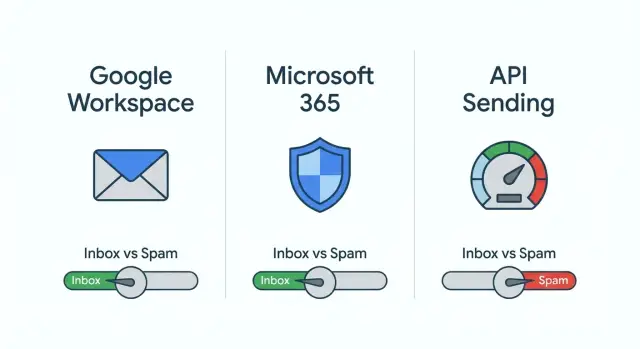
Why your cold email setup choice affects deliverability
Cold email often “works” at low volume, then quietly falls apart when you send more. You run the same outreach, but replies drop, open rates dip, and messages start landing in spam (or not showing up at all). That usually isn’t random. It’s your sending setup hitting real-world limits.
Deliverability is mostly about trust. Inbox providers watch how your domain and mailboxes behave over time: how much you send, how often people reply, how many messages bounce, how many recipients mark you as spam, and whether your technical setup looks legitimate. When you increase volume, you create more chances to trigger the wrong signals.
Most teams end up choosing one of three sending paths:
- Google Workspace mailboxes (you send from Gmail-hosted inboxes)
- Microsoft 365 mailboxes (you send from Outlook/Exchange-hosted inboxes)
- API-based sending (your app sends through an email API/provider instead of “logging into” a traditional inbox)
This isn’t about which brand is “better.” It’s about what changes outcomes as you scale: how long setup actually takes, how much control you have over sender reputation (domains, inboxes, and isolation), what limits show up later, and which deliverability mistakes are most common for each option.
One expectation matters up front: no sending method saves a bad foundation. A clean domain setup can still fail if your list is scraped or outdated, your message reads like a template blast, or your sending behavior is too aggressive (big jumps in volume, low reply rates, lots of bounces). Think of the sending option as the engine. You still need decent fuel and sane driving habits.
A simple example: two teams both send 2,000 emails a week. Team A uses a fresh domain, warms up slowly, targets a tight list, and gets replies. Team B reuses the same old list everywhere, gets bounces, and keeps increasing volume. Team B will lose inbox placement whether they use Google Workspace, Microsoft 365, or an API.
What “setup time” really means for cold email
“Setup time” isn’t just how fast you can create an inbox and start sending. For cold email, it includes all the pieces that decide whether your messages land in inboxes or disappear into spam.
A realistic setup usually includes:
- Choosing or buying a sending domain (often not your main company domain)
- DNS authentication (SPF, DKIM, DMARC)
- Creating mailboxes (and deciding how many you need per domain)
- Warming up new mailboxes so they look like normal senders
- Connecting tools for sequences, tracking, and reply handling
Authentication is the foundation. SPF tells receiving servers which systems are allowed to send for your domain. DKIM signs each email so it’s harder to fake. DMARC ties it together and tells receivers what to do when checks fail. If any of these are missing or misconfigured, you’ll see rejected mail, spam placement, or messages that look suspicious even when your copy is good.
The “hidden work” surprises most teams. Deliverability problems often come from the boring operational details: unsubscribe handling, bounce suppression (hard bounces should stop immediately), reply routing (so interested leads don’t get another follow-up), and consistent sending patterns (big volume jumps look risky).
Faster setup isn’t always safer at higher volume. If you rush and start with too many inboxes, too many new domains, or aggressive daily caps, you can damage reputation early, and recovery is slow.
Google Workspace setup: what takes time and what can break
Google Workspace is a common starting point for outbound because it feels familiar. You create inboxes, send from Gmail, and connect accounts to your sequencer. The difference isn’t the UI, it’s how reliably you can get the basics right without missing a deliverability detail.
A typical setup looks like this: buy a sending domain (usually separate from your main domain), verify it in Google Admin, add SPF/DKIM/DMARC in DNS, create users and inboxes (passwords, recovery, 2FA policies), then connect mailboxes to your sending tool and set limits.
What takes time is rarely the clicks inside Google. It’s DNS work and waiting. DNS changes can take time to propagate, and one typo can leave your domain half-authenticated. Warm-up also needs patience. A brand-new inbox that goes from zero to high volume quickly often gets filtered, even if everything looks “set up.”
Where things most often break:
- DKIM record is added, but DKIM signing isn’t actually enabled in Admin
- SPF is too loose or too strict, causing unexpected failures
- DMARC is missing or set to a policy you’re not ready for
- Login challenges (2FA, app passwords, security alerts)
- Sudden sending spikes that trigger temporary throttling
A careful setup can take a few hours if you control DNS and know the steps, or a few days if approvals, propagation, and warm-up are involved.
What you control well: your domain choices, how many mailboxes you create, and sending behavior per mailbox. What you don’t control: Google’s rules and automated enforcement when patterns look unusual.
Example: a solopreneur buys a new domain, creates two inboxes, and connects them to a sequencer the same day. Technically it works. But if they skip warm-up and start at 200 emails per inbox, replies might land fine while first-touch emails drift into Promotions or Spam.
Microsoft 365 setup: what takes time and what can break
Microsoft 365 can be a solid choice for cold email when you want familiar inboxes and admin controls, but setup is rarely “just add DNS and start sending.” Outlook sending often feels more policy-driven: it behaves well when you look like a normal business, and gets strict when patterns look automated.
The steps that usually take real time:
- Create the tenant, add the domain, and verify it
- Create user mailboxes (and shared mailboxes where appropriate)
- Set SPF, DKIM, and DMARC correctly
- Review outbound and anti-spam policies (especially outbound spam filtering)
- Connect your sending tool (SMTP or OAuth), then test replies and bounces
A common “it worked yesterday, not today” failure is security defaults. Basic SMTP auth is often blocked, and some tools still rely on it. OAuth can be cleaner long-term, but it adds permission screens and admin approvals people miss.
Sign-in and risk controls add friction too. New tenants and new users can trigger suspicious sign-in flags, MFA prompts, or temporary blocks, especially if logins happen from multiple locations (for example, a team plus a hosted server). That can stop sending even if DNS is perfect.
On deliverability, Outlook can be stable at low-to-moderate volume when you ramp slowly and keep engagement healthy. It tends to get sensitive when you increase volume too fast from a fresh mailbox, reuse the same template across many mailboxes, get a burst of bounces or spam complaints, or send without a working unsubscribe flow.
Realistic setup time is often 2 to 6 hours if an experienced admin is doing it with a proven sending tool. If you’re new, or your org requires security reviews, expect 1 to 3 days, plus warm-up time before scaling.
API-based sending setup: more control, more moving parts
API-based sending means your outreach emails are generated by your app (or a platform), then delivered through an email sending service. You’re not “sending from an inbox” in a mailbox UI. You’re sending through configured sending identities.
The basics still start with a domain you control. You verify it with the sending service and set up authentication so recipients can trust the mail. If SPF, DKIM, or DMARC are wrong, you can get quiet filtering even when your copy looks fine.
What you set up before the first email
Most of the work is operational, not writing:
- Verify your sending domain and enable DKIM signing
- Publish SPF and DMARC records that match your sender
- Create a dedicated identity (domain or subdomain) for cold email
- Decide on open/click tracking (or skip tracking to reduce risk)
- Configure a “From” name and reply handling that matches your process
Once you start sending, you also own the negative signals. With mailbox providers, a lot of this is hidden. With APIs, you have to handle it.
Responsibilities you can’t ignore
You need a real process for bounces and complaints, suppression lists (unsubscribes, hard bounces, complainers), gradual warm-up on new domains, and isolation so one bad campaign doesn’t poison everything.
Example: a small SDR team switches to API sending to scale. They forget complaint handling, keep re-mailing a few unhappy leads, and their reputation drops fast. The same team, with proper suppression and a slow warm-up, can scale more safely than a pure mailbox approach, but it takes more upfront care.
Reputation control: domains, inboxes, IPs, and isolation
Sender reputation is your track record. It builds over time from three things working together: your domain (the name after the @), the specific mailbox or identity that sends, and the sending infrastructure behind it (often an IP address), plus how recipients respond.
When teams compare Google Workspace vs Microsoft 365 for cold email, they often focus on interface and pricing. For deliverability, the bigger question is how much of the reputation story you can control, and how much you share with others.
With Google Workspace or Microsoft 365, you control your domain and mailboxes. But you don’t get clean, dedicated control of the underlying sending IPs. You’re sending through large shared systems. That isn’t automatically bad, but it means your outcomes can be influenced by things you can’t see.
API-based sending can give you more knobs around infrastructure. Some setups also keep each customer isolated, so one organization’s deliverability doesn’t bleed into another’s. Warm-up matters either way. A new domain, mailbox, or IP looks risky until it proves consistent behavior.
A simple way to think about the feedback loop:
- Positive signals: opens, replies, saves, forwards
- Negative signals: spam complaints, quick deletes, bounces, unsubscribes
- Fast damage: high bounce rates and spam complaints
- Slow damage: too much too soon, low engagement over time
Reply handling matters more than teams expect. If interested replies get missed and follow-ups keep firing, you’ll trigger more complaints. Systems that categorize replies (interested, not interested, out-of-office, bounce, unsubscribe) help you stop sequences quickly and protect reputation.
Example: if you add 10 new inboxes on a fresh domain and push 200 emails each on day one, you’re betting your reputation on a pattern inbox providers usually punish. A steady warm-up and tight bounce handling is safer, no matter which sending option you choose.
Scaling limits: what slows you down in each option
Scaling cold email is rarely blocked by your sequence builder. It’s blocked by reputation and operations. The moment you move from “one person sending” to “a team sending every day,” the decision becomes less about features and more about how fast you can add capacity without tripping spam filters.
With mailbox-based sending (Google Workspace or Microsoft 365), scaling usually means adding more mailboxes and often more domains. That sounds simple until you have to keep everything consistent: authentication, warm-up pace, signatures, tracking settings, and copy updates across many inboxes.
Where teams typically slow down:
- Google Workspace: careful ramp-up and the overhead of managing many inboxes. If one inbox gets flagged, you lose time pausing, replacing, and re-warming.
- Microsoft 365: similar constraints, plus admin policies can turn into a time sink as you add users and try to keep sending behavior consistent.
- API-based sending: you can scale capacity more cleanly, but you inherit more moving parts (domains, authentication, routing, suppression lists). Mistakes travel fast at higher volume.
No matter which route you choose, you’ll hit practical limits like daily caps, throttling, and “soft” restrictions that aren’t clearly explained. These don’t always show up on day one. They show up when you increase volume, add inboxes quickly, or change targeting.
The hidden scaling tax is people time. Someone ends up owning inbox rotations, deliverability checks, reply and bounce monitoring, authentication troubleshooting, and keeping copy changes consistent across senders.
Teams often outgrow pure mailbox sending when they need predictable volume, fast onboarding for new reps, and cleaner separation between domains or teams. Scaling safely usually means multiple domains, isolated sending identities, and a gradual ramp-up for every new domain and mailbox.
Common deliverability pitfalls (and how to avoid them)
Most deliverability problems are self-inflicted. The sending option matters, but the same mistakes show up everywhere.
The fastest way to ruin a new sender is to act “bigger” than your reputation. If you go from 0 to high daily volume, inbox providers quickly decide you’re risky, even if your offer is real.
The traps that do the most damage (and the fix):
- Skipping warm-up and ramp-up: Start small, increase slowly, and keep sending consistent.
- Blasting the same message to everyone: Tight targeting beats volume. Make the first line prove you didn’t scrape a list.
- Spammy formatting: Avoid heavy HTML, big images, ALL CAPS, weird fonts, and excessive punctuation. Plain-text style usually lands better.
- Authentication gaps (SPF/DKIM/DMARC): Make sure all three exist, are correctly configured, and align with the domain you actually send from.
- Using your main business domain for cold outreach: Use a separate sending domain so a bad week doesn’t damage day-to-day email.
Tracking and links can also hurt placement. Multiple links, URL shorteners, or aggressive click tracking can look suspicious. If you need tracking, keep it light and avoid anything that makes the link look masked.
How to spot a deliverability slide early
Watch for these signals:
- Bounce rate rising (especially “blocked” or “rejected”)
- Reply rate dropping even though list quality looks the same
- More spam-folder reports or angry replies
- Open rates suddenly falling across multiple providers
If you see this, pause scaling, reduce volume, tighten targeting, and double-check authentication and domain separation.
Step-by-step: how to choose the right sending option
Start with your goal, not the tool. A setup that works for a small test can turn into a daily headache once you add more reps, domains, and sequences.
Write down your expected volume for the next 4 to 8 weeks: new prospects per week, number of senders, and number of campaigns. That estimate usually determines whether you can stick with a simple mailbox setup or need tighter controls.
A practical decision process:
- Define the next milestone: a small test (one sender) vs scaled outbound (multiple senders and weekly growth).
- Pick your reputation model: do you need isolation between teams/clients, or is shared reputation acceptable?
- Choose your operations burden: the fastest time-to-launch can create more manual upkeep later.
- Plan a safe rollout: start with one dedicated sending domain and 1 to 2 mailboxes, prove inbox placement, then expand slowly.
- Set minimum standards before you send: authentication, warm-up, clean lists, and a working unsubscribe process.
Example: if you want to test one offer with 200 new prospects a week, a standard mailbox setup can be fine if you keep volumes modest and watch replies and bounces. If the plan is to grow to 2,000 new prospects a week across several SDRs, prioritize isolation and repeatable setup, because mistakes compound fast.
No matter what you choose, don’t skip the basics: SPF/DKIM/DMARC on every sending domain, gradual warm-up for each mailbox, and strict list hygiene.
Quick checklist before you scale your cold email
Before you add inboxes or raise daily volume, pause and confirm the basics are truly working. Many deliverability problems at scale come from one missing “small” step that only shows up after hundreds of emails.
A simple pre-scale checklist:
- Identity is aligned: From address, sending domain, and any tracking domain are consistent. SPF/DKIM/DMARC are set up and passing for the same domain recipients see.
- Warm-up and ramp are planned: warm-up is active for every new mailbox, and you have a written ramp plan.
- Failure paths are tested: trigger a bounce, an unsubscribe, and an out-of-office reply, then confirm your system records each correctly and stops sending where it should.
- Inbox placement is checked: send a short plain message to a few real inboxes (Gmail and Outlook/Hotmail is enough) and check placement manually.
- Replies have an owner: decide who reviews replies daily, response time targets, and what happens after “interested” vs “not interested.”
Practical example: if you’re about to double volume on Monday, do a seed test on Friday morning. If Gmail places you in spam but Outlook doesn’t, fix authentication and content first, not volume.
Example scenario and next steps for a clean rollout
A two-person team wants to start outbound without spending a week on setup. They plan to send 20 to 40 emails per day at first, then grow to a few hundred per day as they add leads and test offers.
They start with mailboxes (Google Workspace or Microsoft 365) because it’s the quickest way to get real inboxes, real login access, and a simple daily routine. In weeks 1 and 2, they keep volume low and focus on targeting and replies. In weeks 3 to 6, they add a second domain and a few more mailboxes so one sender doesn’t carry the whole load.
Once they see repeatable results and need higher volume, they revisit the sending method. If they want tighter reputation control and clearer isolation, they consider shifting some volume to API-based sending for initial outreach, while keeping mailbox-based sending for replies and relationship emails.
What they check every week to catch problems early:
- Bounce rate trends
- Spam complaints (even small spikes)
- Reply mix (interested vs not interested vs out-of-office, plus any angry replies)
- Inbox placement spot checks
- Volume per mailbox and per domain (to avoid accidental jumps)
A clean rollout is simple, but it takes discipline: pick one path for the next 30 days, document your setup (domains, SPF/DKIM/DMARC status, mailbox list, daily caps), ramp in controlled steps, and pause to fix causes when a metric worsens.
If tool juggling is slowing you down, an all-in-one platform like LeadTrain (leadtrain.app) can consolidate domains, mailboxes, warm-up, multi-step sequences, and reply classification so you’re less likely to miss a small setting that turns into a deliverability problem later.
FAQ
Which sending option should I pick for cold email: Google Workspace, Microsoft 365, or an API?
Pick the option that matches your near-term volume and how much operational work you can handle. For small tests and low daily volume, Google Workspace or Microsoft 365 mailboxes are usually simplest. If you need repeatable scaling, tighter isolation, and more control over sending identities and suppression, API-based sending can be a better fit—if you have strong bounce/complaint handling.
What does “setup time” actually include for cold email?
Plan for more than “create an inbox.” A solid setup includes buying/choosing a sending domain, publishing SPF/DKIM/DMARC, creating mailboxes or sending identities, warming up slowly, and confirming bounces, unsubscribes, and reply routing work end to end. Rushing the first week is a common way to harm reputation early.
Do I really need SPF, DKIM, and DMARC, or is one enough?
You should set all three: SPF, DKIM, and DMARC, on every sending domain you use. SPF authorizes who can send, DKIM signs messages, and DMARC tells receivers how to treat failures and helps align the visible sender with authentication. If any one is missing or misaligned, inbox placement and even basic delivery can drop fast when you increase volume.
How should I warm up a new domain or mailbox without getting filtered?
Start by keeping volume very low and consistent, then increase gradually over days and weeks. The safest default is to avoid big jumps, especially on brand-new domains or mailboxes, because sudden spikes look risky to inbox providers. Warm-up helps, but it won’t save you if your list quality is poor or your bounce rate is high.
What are the most common Google Workspace deliverability mistakes?
Google Workspace usually breaks on overlooked admin steps and security friction: DKIM records added but signing not enabled, SPF/DMARC misalignment, and login challenges that interrupt sending tool access. It can also throttle you if patterns look automated or you ramp volume too fast. The fix is usually careful authentication checks, consistent daily caps, and a slower ramp.
Why does Microsoft 365 sometimes “work one day and stop the next”?
Microsoft 365 often fails around auth methods and security defaults. Basic SMTP auth may be blocked, OAuth permissions can be missed, and new tenants/users can trigger risk controls that pause sending. Deliverability tends to stay stable when you ramp slowly and handle bounces/unsubscribes correctly, but it can tighten quickly after spikes in bounces, complaints, or templated blasts across many inboxes.
Is API-based sending better for deliverability than mailboxes?
Yes, but only if you take ownership of the operational pieces mailbox providers hide. You must correctly set domain verification and DKIM, publish SPF/DMARC, handle bounces and complaints immediately, maintain suppression lists, and manage reply routing so people don’t get follow-ups after replying or unsubscribing. API sending can scale cleanly, but mistakes also scale faster.
Should I use my main company domain for cold email?
Use a separate sending domain for cold outreach so a bad campaign doesn’t harm your day-to-day email. Keep the domain simple, authenticate it fully, and stay consistent with the “From” identity you use. If you change domains often or spin up many new domains at once, you increase warm-up work and raise the odds of early filtering.
Do open/click tracking and links hurt inbox placement?
Default to minimal tracking when you’re troubleshooting placement or starting a new sender. Extra links, URL shorteners, and aggressive click tracking can add risk signals and lower placement, especially at scale. If you need tracking, keep it light and consistent, and avoid anything that makes links look masked or unusual.
How can I tell deliverability is slipping before it’s a disaster?
Watch bounce rate (especially blocked/rejected), reply rate trends, and whether opens drop suddenly across multiple providers. Also pay attention to angry replies and spam complaints, even small spikes. If metrics slide, pause scaling, reduce volume, tighten targeting, and re-check authentication and suppression so you stop sending to hard bounces and unsubscribes immediately.