SPF, DKIM, and DMARC for cold email: setup checklist
SPF, DKIM, and DMARC for cold email: a practical checklist to authenticate new sending domains, avoid DNS mistakes, and improve inbox placement.
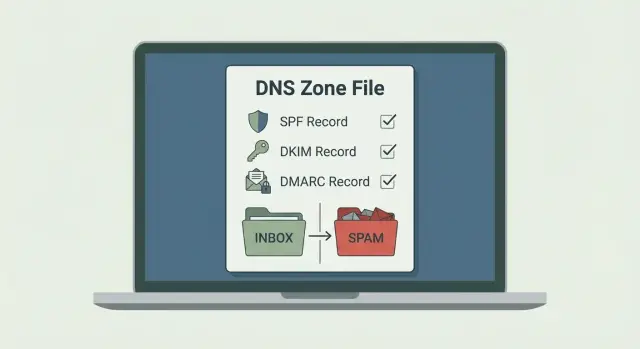
Why cold emails fail when DNS auth is wrong
Email authentication is how an inbox checks whether your message is actually allowed to come from your domain. It’s not about writing better copy. It’s about proving identity.
When you send a cold email, the receiving server looks at the domain in the From address and runs three core checks:
- SPF: did an approved server send this?
- DKIM: is the message signed by the domain?
- DMARC: what should the receiver do if those checks fail, and do the domains line up?
New sending domains get judged more strictly because they have no track record. A brand-new domain with weak or broken DNS signals looks risky, even if your intent is fine. That’s why authentication errors hurt cold outreach faster than they hurt established brands.
Bad DNS records usually cause problems in three quiet ways: your email gets accepted but lands in spam, it gets rejected outright (hard bounces or blocks), or it lands sometimes but your domain starts building a bad reputation.
Small mistakes are often the cause. Two separate SPF TXT records can trigger a failure. A DKIM key pasted with a missing character won’t verify. DMARC set to an aggressive policy before everything aligns can block normal sends.
This checklist focuses on SPF, DKIM, and DMARC in practical terms: what to publish, what to avoid, and how to verify results before you scale sending. It doesn’t cover copywriting, list quality, offer fit, or local compliance.
The simple model: what gets checked when you send
When you send a cold email, there are usually two domains involved, and mixing them up causes a lot of confusion.
The sending domain is what the recipient sees in the From address ([email protected]). The mailbox domain (sometimes different) is the domain that actually sends the message behind the scenes, like a dedicated sending subdomain or a provider-owned domain. For good deliverability, these should be consistent or at least clearly connected.
From domain to inbox: the three checks
Most inboxes follow the same basic flow:
- SPF checks the hidden Return-Path (also called the envelope sender) and asks if this server is allowed to send for that domain.
- DKIM checks the DKIM signature and asks whether the signing domain matches what was sent.
- DMARC looks at the visible From domain and asks whether SPF and/or DKIM align with it, then applies your policy.
Alignment, without jargon
Alignment is simply “do the domains line up?” There are three places to look:
- From: what humans see (example: @yourdomain.com)
- Return-Path: what SPF uses (might be @mail.yourdomain.com or something else)
- DKIM d=: the domain that signed the message (example: d=yourdomain.com)
DMARC passes when the From domain aligns with SPF (Return-Path domain) and/or aligns with DKIM (the d= domain). Everything doesn’t have to be identical, but it should be intentional.
What happens when checks fail
Providers don’t all react the same way, but the outcomes are predictable:
- p=none (monitoring): mail often still arrives, and you collect reports.
- p=quarantine: mail is more likely to land in spam.
- p=reject: mail is blocked.
Even before DMARC is strict, repeated failures often reduce inbox placement over time.
Example: you send from [email protected], but SPF only authorizes a different domain and DKIM signs as d=anotherdomain.com. The message can look “unowned,” so filters get cautious.
Before you touch DNS: prep for a clean setup
Most deliverability problems start before anyone adds a DNS record. Prep well and your setup is faster, cleaner, and easier to troubleshoot.
Start by deciding what domain will appear in the From address. Many teams use a dedicated sending domain (or a subdomain) so their main company domain isn’t the first thing on the line if something goes wrong.
Next, choose how you’ll send and collect the exact record values you need. Your email provider will give you a specific SPF value, DKIM selector names and keys, and a suggested DMARC record. Don’t guess or reuse records from another domain.
Before you make changes, confirm four basics: which exact From domain you’ll use, which provider(s) will send mail, where DNS is actually managed, and who has permission to publish TXT and CNAME records.
Also make sure you’re in the right dashboard. People often buy a domain in one place, host DNS somewhere else, and edit records in the wrong spot. If you’re unsure, check which nameservers the domain uses and log into the provider that controls them.
A simple change plan helps prevent “helpful” edits that break existing email. Typically you’ll update SPF (carefully, especially if it already exists), add DKIM, and publish DMARC in monitoring mode. Leave unrelated MX, A, and website records alone unless you know why you’re changing them.
SPF: add the right senders and avoid lookup limits
SPF is a DNS TXT record that tells mailbox providers which servers are allowed to send mail for your domain. In cold outreach, SPF is one of the first checks that decides whether your message looks normal or suspicious.
A good SPF record is a small allowlist covering every place that can send as your domain: your cold email sender, Google Workspace or Microsoft 365 (if you use them), and any support or CRM tool that sends mail on your behalf.
What to put in your SPF record
Most new domains only need a few items:
- include: when a provider tells you to include their SPF. Keep includes to a minimum because they cost DNS lookups.
- ip4:/ip6:: when you have a fixed sending IP. This avoids lookups, but only works if the IPs are truly stable.
- a and mx: only if your domain’s own server or mail exchanger sends mail directly (many cold email setups don’t need these).
Here is a clean example shape (your values will differ):
v=spf1 include:YOUR-SENDER-SPF ip4:203.0.113.10 ~all
Choose the right ending: -all vs ~all
The last part is your default rule for anything not listed.
~all (soft fail) is a safer start while you test and might have missed a sender. -all (hard fail) is better once you’re confident, because it clearly tells providers to reject unauthorized senders.
For new outbound domains, start with ~all during setup and early sending, then move to -all after you’ve verified nothing legitimate is failing.
Stay under the 10-lookup limit
SPF has a hard limit of 10 DNS lookups. Too many includes can break SPF and quietly hurt deliverability.
To stay under the limit, keep includes low, avoid nested include chains, remove old tools you no longer send from, and make sure you publish only one SPF TXT record per domain. Multiple SPF records can cause a permerror.
DKIM: publish keys correctly and keep selectors tidy
DKIM adds a digital signature to each email you send. Receiving servers use the public key in your DNS to verify the message wasn’t changed and that your domain is allowed to sign mail. DKIM is often what makes a new domain look consistent over time.
How selectors work (and why names matter)
A DKIM selector is a label that points to a specific public key. Your sending system signs emails with that selector, and the receiver looks up a DNS record at:
selector._domainkey.yourdomain.com
Selectors let you rotate keys without breaking mail, but they can also create confusion. If you reuse the same selector forever, rotations become risky. If you create a new selector constantly, your DNS becomes messy.
A simple approach is to use a stable, descriptive selector like s1, mail, or 2026q1, then rotate intentionally when needed.
TXT vs CNAME: what you’ll see in DNS
Some providers publish DKIM as a TXT record containing the full key. Others give you a CNAME that points to a hosted key record. Both work if (and only if) you publish exactly what your provider expects.
The most common DKIM problems are straightforward: wrong record type (TXT vs CNAME), extra quotes or hidden line breaks, pasting only part of the key, putting the record on the root domain instead of selector._domainkey, or leaving old selectors active with conflicting records.
If DKIM verification fails, don’t guess. Re-copy the value from the provider, republish it cleanly, then retest after DNS updates.
DMARC: start with monitoring, then tighten policy
DMARC is the “what should receivers do about failures?” layer. SPF and DKIM tell Gmail or Outlook what to check. DMARC adds a clear policy (none, quarantine, reject) and requires alignment with the visible From domain.
A practical way to start is monitoring first. Publish DMARC with p=none so you can see what passes and fails without risking deliverability drops from an overly strict policy. Let it run for a few days while you send small volumes, then tighten it in steps.
Here’s a safe starter record pattern (adjust emails and domain):
_dmarc.example.com TXT "v=DMARC1; p=none; rua=mailto:[email protected]; adkim=s; aspf=s; pct=100; fo=1"
Keep the options simple. Strict alignment (adkim=s and aspf=s) is a good default for dedicated outbound domains where you control the sender. pct=100 keeps behavior consistent. fo=1 is a reasonable “send a report when something fails” setting.
Be careful with reporting addresses. Aggregate reports (rua) can be useful, but only if someone checks them. Forensic reports (ruf) are often blocked and can create privacy and noise issues, so it’s usually better to skip ruf entirely.
Step-by-step: authenticate a brand-new sending domain
Treat a fresh domain like a clean room. Your DNS records must match your actual sender, so decide upfront where you’ll send from.
1) Clean up the DNS zone first
In your DNS host, search for existing TXT records that mention SPF, DKIM, or DMARC. New domains sometimes have starter records, old tests, or duplicates from a previous attempt. Remove what you don’t recognize, and make sure you have only one SPF TXT record for the root domain.
2) Add authentication in a safe order
Add one record type at a time, then confirm it’s visible before moving on:
- SPF: publish a single SPF TXT record that includes only the services that will send mail for this domain.
- DKIM: add the DKIM records your sender provides (often CNAMEs, sometimes a TXT record). Make sure the selector matches your sender’s signing settings.
- DMARC: publish a DMARC TXT record at _dmarc.yourdomain with p=none to start.
3) Wait, then re-check the exact values
DNS changes aren’t always instant. After you publish records, re-check what’s actually live. Confirm there’s only one SPF record, DKIM matches exactly, and DMARC is on the _dmarc subdomain.
4) Send real emails and verify “pass” in headers
Send a few plain emails (no attachments, no heavy HTML) to accounts you control, like Gmail and Outlook. Open the message details and look for Authentication-Results. You want spf=pass, dkim=pass, and dmarc=pass.
If SPF fails, it’s usually the wrong include or multiple SPF records. If DKIM fails, it’s usually a selector mismatch or a typo in the DNS value.
Once you get consistent passes, move on to warm-up and careful sending volume.
Common DNS mistakes that quietly hurt inbox placement
Most problems with a new domain aren’t dramatic failures. They’re small DNS details that still let mail send, but make receivers trust you less.
Two issues come up constantly:
First, publishing two SPF records on the same domain. A domain should have only one SPF TXT record. If you need Google plus a sending tool, merge everything into a single v=spf1 record and keep one ending (~all or -all).
Second, hitting SPF permerror due to too many lookups. Includes add lookups, and nested includes add even more. Trim unused tools, keep the record short, and avoid stacking providers “just in case.”
On the DKIM side, the most common failure is a selector mismatch. Your provider signs with a specific selector (like s1 or default). If your DNS publishes a different selector, receivers can’t verify DKIM even though a record exists.
DMARC failures often confuse people because SPF can pass and DMARC can still fail. DMARC requires alignment with the visible From domain. If you send from [email protected] but the Return-Path domain is brand-mail.com and DKIM signs as d=brand-mail.com, you can end up with SPF pass and DMARC fail.
Quick checklist: a 10-minute final verification
Before you send real volume, do a quick pass to make sure records are clean and your messages actually authenticate.
Confirm there’s exactly one SPF TXT record on the root domain. Confirm DKIM is published for the domain you send from and that the selector matches what your sending tool uses. Confirm there’s exactly one DMARC record at _dmarc.example.com, and start with p=none.
If you just changed records, wait a bit. Many “it still fails” moments are cached DNS.
Then send a real test email to a mailbox you can inspect and check Authentication-Results. You’re looking for SPF=pass, DKIM=pass, and DMARC=pass.
Fast fixes when something fails:
- SPF fails: wrong include, wrong domain (root vs subdomain), or two SPF records.
- DKIM fails: selector mismatch, extra spaces/quotes, or signing turned off.
- DMARC fails: DMARC record missing, published on the root instead of _dmarc, or SPF/DKIM not aligned with the From domain.
Example and next steps for a new cold email domain
A simple setup looks like this: you buy a fresh domain just for outbound and create a few mailboxes (alex@, sam@, info@). You keep your main company domain separate so a mistake doesn’t spill into day-to-day email.
A realistic timeline:
- Day 0: Publish SPF, DKIM, and DMARC in monitoring mode (p=none).
- Day 1: Send test emails and verify SPF/DKIM/DMARC pass. Fix typos and wrong hostnames.
- Days 2-3: Start very low volume while warm-up begins.
- End of week 1: Review DMARC reports and bounces, then fix anything misaligned.
- Week 2+: If everything is stable, move to p=quarantine, then p=reject later.
If you see SPF pass but DMARC fail, it usually means alignment is broken, not that DNS is completely wrong. The quickest fix is often to ensure DKIM is enabled and signing with your sending domain, since DKIM alignment is usually more stable than SPF when tools change.
After authentication is correct, results come from behavior, not records. Warm up slowly, keep early volume low, document DNS changes, avoid switching providers in the first month, and watch bounces and unsubscribes closely.
If you want to reduce the number of tools involved, LeadTrain (leadtrain.app) combines domain setup, SPF/DKIM/DMARC configuration, warm-up, multi-step sequences, and reply classification in one platform, which can make it easier to keep alignment consistent as you add domains and mailboxes.
FAQ
Why are my cold emails failing even though the copy looks good?
Your copy can be fine, but inboxes still need proof the message is allowed to use your domain. If SPF, DKIM, or DMARC fail (or don’t align), providers may accept the email but route it to spam, throttle it, or block it outright, especially for a new domain with no reputation.
What do SPF, DKIM, and DMARC each actually do?
SPF checks whether the server that sent the email is allowed to send for the envelope domain (Return-Path). DKIM checks whether the message has a valid cryptographic signature tied to your domain. DMARC checks whether the visible From domain aligns with SPF and/or DKIM, then applies your policy.
I see two SPF records in DNS. Is that a problem?
Multiple SPF TXT records on the same domain can cause an SPF permerror, which is effectively a fail for many receivers. The fix is to merge everything into a single v=spf1 record that includes every legitimate sender, then keep only that one SPF record.
Should I use ~all or -all at the end of my SPF record?
Start with ~all while you’re testing and may have missed a legitimate sender, because it’s more forgiving during setup. Move to -all once you’ve confirmed all real sending sources are included and your tests consistently show SPF passing.
What does the “SPF 10-lookup limit” mean in practice?
SPF has a hard limit of 10 DNS lookups, and too many includes (especially nested includes) can exceed it and break SPF. Keep includes minimal, remove old tools you no longer use, and prefer direct IP mechanisms only when you truly have stable sending IPs.
DKIM says it’s enabled, but my emails show dkim=fail. What’s usually wrong?
The most common causes are publishing the record under the wrong hostname (not selector._domainkey), using the wrong record type (TXT vs CNAME), copying only part of the key, or having a selector mismatch between what your sender signs with and what DNS publishes. Re-copy the exact values from your sending provider and re-test after DNS propagates.
How can SPF pass but DMARC still fail?
DMARC requires alignment with the visible From domain, not just a pass somewhere. SPF can pass for the Return-Path domain while the From domain is different, and DKIM can also sign with a different domain, so DMARC fails even though one check passed. Fix it by making sure SPF and/or DKIM use a domain that aligns with the From domain you send as.
When should I switch DMARC from p=none to quarantine or reject?
For a brand-new outbound domain, publish DMARC with p=none first so you can monitor without risking unnecessary blocking. After you see consistent SPF/DKIM alignment in real sends and the failures are understood, tighten to quarantine and later to reject.
What’s the fastest way to verify my setup before I scale sending?
Send a few plain test emails to inboxes you control and check the message’s Authentication-Results header. You’re aiming for spf=pass, dkim=pass, and dmarc=pass. If something fails, fix DNS or signing settings first, then re-test after propagation.
Should I use my main domain or a separate domain for cold email?
The safest default is to use a dedicated sending domain or subdomain so mistakes don’t impact your main company domain’s day-to-day mail. Keep the From domain, DKIM signing domain, and Return-Path domain intentionally aligned, and avoid changing providers or DNS frequently during the first few weeks while reputation is forming.