Turn product screenshots into outbound copy for one clear use case
Learn how to turn product screenshots into outbound copy by mapping UI actions to outcomes, picking one use case, and writing emails people reply to.
Why screenshots rarely turn into good emails
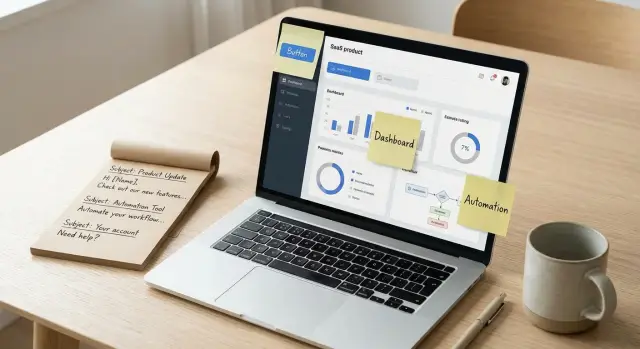
Turning product screenshots into outbound copy sounds simple: show the UI, explain what it does, hit send. But screenshots pull you toward describing buttons, tabs, and settings, which usually becomes a feature dump.
A screenshot is dense. Your reader doesn’t have your context. If you try to explain everything on the screen, the email gets longer, the point gets blurry, and the buyer has to work to figure out why it matters.
Most buyers don’t care about the feature by itself. They care about what changes in their day: time saved, fewer mistakes, fewer missed follow-ups, faster replies, and how much effort setup takes.
A cold email doesn’t need to cover the whole product. It needs one clear outcome tied to one concrete use case.
Example: a screenshot shows an “AI reply classification” panel with labels like Interested, Not interested, Out-of-office. If you describe the labels, you’re still talking about the UI. Translate it into an outcome and it becomes something a sales leader recognizes: “Your team stops sorting inbox replies and spends that time booking meetings.” Then attach it to a use case like “SDRs running 3 sequences at once.” One email, one situation.
Screenshots help when they support a single point, not when they become the point. They work best when the screen proves a claim (replies really are categorized), shows a before/after moment (messy inbox vs. organized next step), or makes a workflow feel real.
They distract when the reader has to learn your interface to understand your message. If the value isn’t obvious without a tour, the screenshot is doing the wrong job.
Choose screenshots that show a story
Don’t start by grabbing every screen that looks impressive. Start by finding a tiny story your buyer can understand in five seconds: someone did something, and something changed.
Aim for 1 to 3 screenshots that show a complete flow. One screen is often too vague (“here’s a dashboard”), and five screens becomes a tour. The strongest picks show a clear before/after, a status change, or progress over time.
A quick filter: for each screenshot, point to one element and explain what it means in plain language. If you can’t, the screen is probably too internal or too busy.
What to look for (and what to skip)
Story-friendly screens usually show at least one of these:
- A visible result (a count, a classification, a booked meeting, a reduction)
- Progress or status (warm-up moving from 3 of 10 mailboxes, sequence step completed)
- A clear before/after (draft vs. sent, untagged vs. categorized replies)
- One simple action you can narrate (upload leads, launch a sequence, pause a step)
Be careful with admin-only settings pages. Unless you sell to IT or email admins, screens like DNS records, permission tables, and advanced configuration tend to create fear or confusion. Even when details matter (like SPF/DKIM/DMARC), most prospects care about the outcome: emails reach the inbox and the team doesn’t have to babysit setup.
Example: with LeadTrain, a simple three-screen story could be (1) buying a sending domain, (2) warm-up progress increasing over a few days, (3) replies automatically labeled “Interested” vs “Not interested.” Each image answers one question: what changed for the user after they clicked a button?
Turn UI elements into user actions
A screenshot isn’t a message. It’s a set of visible controls. Your job is to name what a person can do on that screen in plain words, without hype.
Start by writing down only what you can literally see: buttons, toggles, input fields, tables, status tags, warnings, and empty states. This keeps you honest and stops you from inventing benefits that aren’t shown.
Then convert each element into an action a user takes. Use simple verbs.
- Button label -> action: “Start warm-up” -> “Turn on warm-up for this mailbox”
- Toggle -> action: “Reply classification” -> “Automatically sort replies into categories”
- Table -> action: “Sequence steps” -> “Add step 2 and set the delay”
- Alert -> action: “SPF missing” -> “Fix authentication so mail is trusted”
- Status tag -> action: “Warming” -> “Mailbox is building reputation right now”
After each action, write what the user gets immediately. Not the long-term promise, just the next on-screen result or system behavior. Examples: “Status changes to On”, “A DNS record is added”, “A category label appears on the reply”, “A new step shows up in the sequence”.
Only after that literal layer should you translate it into a business outcome. Keep it tight and avoid guessing. “Automatically sort replies” can become “Spend less time triaging responses.” If you can’t tie an outcome to a visible action, leave it out.
This is how screenshot-based copy avoids feature soup. You’re building a clean chain: UI element -> user action -> immediate result -> outcome.
Translate actions into outcomes without guessing
A screenshot shows what the product does. Your job is to say why that matters without making claims you can’t prove.
A reliable chain looks like this:
- Action: what the user does in the UI (click, filter, import, launch)
- Immediate result: what changes right after (emails queued, reply tagged, task created)
- Business outcome: what that means in the real world (less manual work, faster follow-up)
- Measurable proxy: one number you can defend (steps removed, minutes saved, tools replaced)
When you’re stuck, ask: does this save time, reduce errors, or increase speed and consistency? Pick the most obvious one for the person you’re emailing.
Add a proxy only if you can explain it. Good proxies often come from counting: “This used to be 6 clicks, now it’s 2,” or “This replaces copying replies into a sheet.” That makes the message concrete and keeps you honest.
Stop at one outcome per screenshot. If you list every benefit, the email turns into a catalog.
Pick one concrete use case to anchor the message
A screenshot can show a lot, but an email can carry one idea. Before you write, pick one role and one moment in time. Not “sales teams” and “someday.” Think “an SDR today” or “a founder this week.”
Write the situation in one sentence. A useful template is: when X happens, they need Y.
Example: “When replies start coming in after a send, an SDR needs to spot interested leads fast without digging through every inbox.”
Name the use case as a specific job, not a category. “Better deliverability” is a category. “Set up a new sending domain and get it warmed up so Monday’s campaign lands in inboxes” is a use case.
Quick test: if you can’t picture someone finishing it in one sitting, it’s too broad.
If you want a fast honesty check, answer these in plain language:
- Who is doing it (SDR, sales lead, founder)?
- When are they doing it (today, this week)?
- What triggers it (new domain, first campaign, replies piling up)?
- What does “done” look like (campaign live, inbox sorted, follow-ups sent)?
Then make sure your screenshots support the full story. If your use case is “launch a cold email sequence from a fresh domain,” a single analytics chart won’t help. You’d want screens that show setup and the moment of value: domain/mailbox setup, warm-up status, sequence steps, and early replies getting classified.
If your screenshots can’t prove the use case without extra explaining, change the use case or grab different screens.
Write the email from the use case, not the feature
Lead with the prospect’s situation, not your product screen. A screenshot is only useful if it supports a moment your reader recognizes: a new SDR starting outreach, a founder sending their first 200 emails, a team cleaning up messy replies.
State the outcome in one plain sentence. Then use one detail from the UI as proof, not as the headline.
A simple body structure:
- Situation: what they’re dealing with this week
- Outcome: what gets easier or faster
- Proof: one UI detail that makes it believable
- Example: one short before/after moment
Example (based on a warm-up dashboard screenshot):
You’re emailing SDRs who just got a new sending domain and are worried about landing in spam. Don’t lead with “automated warm-up.” Lead with the job: getting safe sending volume without babysitting settings.
You can write: “When you spin up a new domain, the first week is the risky part. The goal is to build reputation gradually so you can start booking meetings without burning the domain.” Then point to the UI proof: “The warm-up view shows ramping volume and health checks, so you can see it day by day.”
Add one concrete moment: “Instead of guessing if it’s safe to send 30 emails today, you check the dashboard, keep sequences running, and focus on replies.”
Close with a question tied to that use case: “Are you setting up any new domains this month, or are you still sending from your main one?”
Subject line and first lines that fit the screenshot
Your subject line should match the situation on the screen, not your product name. Ask: what problem is visible here, and what job is the reader trying to finish?
Subject lines that fit common screen moments (a dashboard, a queue, a setup page):
- “Fewer missed replies in your inbox”
- “Cleaning up bounce and OOO noise”
- “Keeping warm-up from eating your morning”
- “A faster way to sort ‘interested’ replies”
- “Quick fix for deliverability dips”
Your first line should give a reason to keep reading. Pick one angle:
- Role-based: “If you’re the SDR who owns the inbox, the reply queue can get messy fast.”
- Trigger-based: “Noticed more bounces lately? That usually snowballs.”
- Workflow-based: “After a campaign goes out, sorting replies is the slow part.”
To reference the screenshot without saying “see screenshot,” name the moment and the visible signal: “On the replies screen, you can spot ‘interested’ vs ‘not interested’ at a glance.” Or: “In the setup view, SPF/DKIM/DMARC shows as green when it’s done.”
Keep wording plain. Cut internal phrases like “tenant-isolated infrastructure” and say the outcome: “each team keeps its own sending reputation.”
Sanity-check and improve the draft fast
The first draft usually sounds clear to you because you know the product. The fastest win is to test clarity, not creativity.
Send the email to someone outside your team (or a friend outside your industry) and ask: “What do you think this tool helps me do?” If they answer with a feature (“it has a dashboard”) instead of an outcome (“it helps track replies”), your copy is still too inside-baseball.
Do a quick context sweep. Outbound readers won’t pause to decode acronyms, internal labels, or unexplained numbers. If a screenshot shows “Reply Rate 12%” but your email never says why that matters, the value disappears.
A 10-minute cleanup pass that catches most issues:
- Circle any term a new person wouldn’t know (acronyms, product names, “warm-up”, “classification”). Replace it or add a short explanation.
- Swap one feature word for an outcome word (for example: “dashboard” -> “tracking”, “sequencer” -> “follow-up plan”, “AI classification” -> “auto-sorting replies”).
- Check every metric: does the reader know what “good” looks like, and what action it helps them take?
- Make the use case concrete in one sentence (who + what + when).
- A/B test one variable at a time (use case, angle, or CTA). Don’t change all three.
If your draft says, “We categorize replies automatically,” tighten it to: “You stop scanning your inbox and spend your time on the 2-3 interested replies that need a human.” If you use a tool like LeadTrain, that maps directly to reply categories (interested, not interested, out-of-office, bounce, unsubscribe) without extra jargon.
Common traps when writing from screenshots
Screenshots feel specific, so it’s easy to assume the email will write itself. But a UI shows capability, not value. Most drafts fail for predictable reasons.
Traps that make the email feel noisy or untrustworthy
Piling on proof by dropping six screenshots into one email reads like a feature dump, not a story.
Another trap is promising outcomes the screen doesn’t support. If the UI shows a reply classification label, don’t jump to “you’ll book 2x more meetings.” The screenshot supports “replies get categorized automatically,” not a revenue claim.
Vague outcomes also kill interest. “Improve efficiency” can mean anything. Tie the UI to a concrete job: “stop triaging replies manually,” “catch bounces faster,” or “avoid missing interested replies.”
Mixing roles makes the message wobble. One email that tries to speak to SDRs, RevOps, and founders ends up matching nobody’s day-to-day.
And asking for a meeting too early often backfires. If the screenshot is your main evidence, earn curiosity first.
Red flags:
- More than one workflow in the same email
- Outcomes phrased with generic words like “optimize” or “efficiency”
- Numbers you can’t back up from the screen
- Multiple audiences addressed in one paragraph
- A meeting ask before a clear, single use case is stated
Example: if you screenshot a LeadTrain inbox view that tags replies as interested, not interested, and out-of-office, keep the promise tight. A fair claim is that reps spend less time sorting and can reply faster, not that the tool “fixes deliverability” unless the screenshot actually shows warm-up or domain setup.
Quick checklist before you send
Before you hit send, the draft should read like it was written for one person doing one job, not like a tour.
Run this pass:
- Name a single role and a single situation.
- Say one outcome in plain words the reader can picture.
- Add one proof point that matches what the UI shows.
- Make the CTA a yes/no or short-answer question.
- Delete anything that looks like a feature menu.
Final check: read the first two lines only. If they don’t clearly say who it’s for and what changes for them, rewrite those lines before you tweak anything else.
Example: turning one screen into a usable outbound message
Imagine your screenshot shows an inbox-like view with reply labels like Interested, Not interested, Out of office, Bounce, and Unsubscribe, plus a way to filter by label. Most teams look at that and write, “We have AI reply classification.” That’s a feature, not a reason to care.
Instead, say what the UI lets a person do in one clear action: open one place, see replies from multiple mailboxes, and auto-sort them so the rep can focus on the Interested pile.
Then state the outcome in manager-friendly language: less time scanning inboxes and sheets, faster follow-up when a lead signals real interest, and fewer hot replies missed because they landed in the wrong mailbox.
Anchor it to one use case: a small sales team running cold email from several domains and inboxes, where replies are scattered and follow-up is inconsistent.
Here’s a 6-sentence cold email draft built from that single screen:
Subject: Quick way to stop missing “interested” replies

Hi {FirstName} - if your team sends from multiple inboxes, are replies getting hard to track?

One simple fix is auto-labeling replies (interested, not interested, OOO, bounce, unsubscribe) so reps can work the “interested” queue first.

Teams use this to cut the time spent sorting mail and respond faster when someone asks for pricing or a quick call.

If it’s helpful, I can show what that looks like in LeadTrain in 5 minutes using a sample campaign.

Worth a quick look this week?
Notice what’s missing: no long feature list, no vague promises. It’s one screen, one action, one outcome, one use case.
Next steps: turn one email into a repeatable system
Once you have one screenshot-based email that gets replies, don’t treat it like a one-off. Turn it into a short sequence that keeps the same use case and adds one new detail each time.
A simple three-step sequence is usually enough:
- Email 1: use case + outcome + one proof point from the UI
- Email 2 (2-3 days later): “did I miss this?” + one extra detail (time saved, fewer steps, fewer mistakes)
- Email 3 (another 2-3 days): polite breakup + a clear yes/no question
Decide what you’ll test and change one thing at a time (use case, audience, or wording).
Before you scale volume, get the sending basics right: a dedicated sending domain, proper email authentication (SPF, DKIM, DMARC), and a warm-up period so your messages land in inboxes.
If you want one place to run that full outbound flow, LeadTrain (leadtrain.app) combines domains, mailboxes, warm-up, multi-step sequences, and reply classification so you don’t have to juggle multiple tools.
A practical next step: take your best email, write two follow-ups that reference the same screen, then run a small test (50-100 sends) before expanding.
FAQ
Should I include screenshots in a cold email at all?
Usually no. Use a screenshot only when it supports one clear point your reader already cares about, like sorting replies faster or seeing warm-up progress, and keep the email understandable even if they never open the image.
How do I stop a screenshot from turning into a feature dump?
Describe what changes for the buyer after the action, not what the screen contains. For example, instead of naming labels and tabs, say that replies are automatically sorted so reps can focus on the interested ones first.
How do I choose the right screenshot for the message?
Pick a role and a moment, then choose a screen that proves that moment. A replies view works for “triaging responses after a send,” while a warm-up view fits “ramping a new domain safely this week.”
What’s the fastest way to translate UI elements into outcomes?
Start literal: name what you can see and what the user clicks. Then add the immediate result that happens right after, and only then translate it into one business outcome you can defend.
How many screenshots is too many in one email?
Anchor each screenshot to one use case and one outcome. If you try to get deliverability, reply handling, sequencing, and analytics into one email, it reads like a product tour and the reader won’t know what to care about.
How do I avoid making claims the screenshot can’t prove?
Only promise what the screenshot can reasonably support. A reply label can support “less time sorting replies,” but it can’t honestly support “2x more meetings” unless you have separate proof and you explain it clearly.
Who should the email be written for if the product has many users?
Default to one role per email: SDR, sales lead, founder, or RevOps. If you talk to multiple roles at once, your examples and language get messy and the use case won’t feel real to any one person.
Do DNS and authentication screenshots help or hurt?
Skip deep config pages unless you’re selling to email admins. Most prospects don’t want to learn SPF/DKIM/DMARC; they want to know setup is handled and email lands in the inbox without babysitting technical steps.
What’s a good CTA when the screenshot is the main proof?
Use a short yes/no or short-answer question tied to the same use case, like whether they’re setting up new domains this month or whether replies are getting hard to track across inboxes. Avoid asking for a meeting before the use case is clear.
How do I turn one screenshot-based email into a short follow-up sequence?
Keep the use case the same and add one new detail each time, like a before/after moment or a specific friction removed. If you’re using a platform like LeadTrain, you can keep the story consistent across domain setup, warm-up progress, and AI reply classification without turning it into a long tour.