Plain text vs HTML cold emails: choose and format safely
Use a clear framework to pick plain text vs HTML cold emails, plus a simple formatting checklist that keeps deliverability and replies on track.
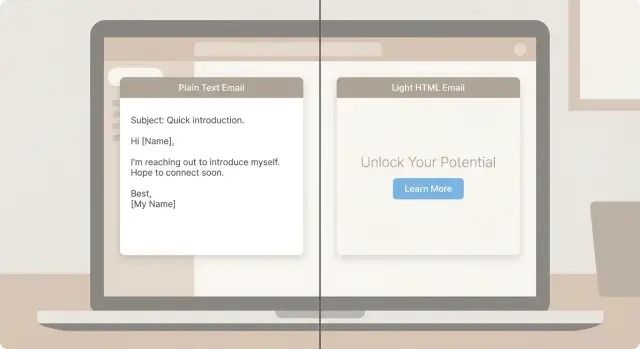
What you are deciding when you choose plain text or HTML
When people say “plain text” in cold outreach, they usually mean an email that looks like it was typed in a normal inbox: no layout, no buttons, no images, and minimal styling. It can still include line breaks, a short signature, and a link written out as text.
“HTML” means the email relies on markup to control how it looks. That can be as light as a bolded phrase and tidy spacing, or as heavy as a newsletter-style layout with colors, logos, tracking pixels, and multiple links.
The real decision isn’t aesthetics. It’s whether you get replies while protecting inbox placement and trust. If your message lands in spam or reads like an ad, the offer doesn’t get a chance.
Formatting changes how spam filters score the message, how it renders in Gmail vs Outlook (especially on mobile), and whether the recipient feels like they’re reading a personal note or a campaign.
Choosing a format mainly adjusts a few risk factors:
- How many elements you include (text only vs text plus images, buttons, and extra code)
- How many links and tracking elements you add
- How consistent the email looks across inboxes
- How much the email resembles bulk marketing templates
- How easy it is to scan and reply
If you’re sending at scale, tooling matters too. Some setups automatically add tracking, signatures, or templating that quietly turns a simple email into heavier HTML. If you’re using an all-in-one platform like LeadTrain to manage domains, mailboxes, warm-up, and sequences, it’s worth checking what your “simple” template becomes when it’s actually sent.
How formatting can affect deliverability and trust
Deliverability is mostly about reputation, but formatting still nudges your email toward “personal note” or “mass send.” Inbox providers look at patterns across lots of messages, including how an email is built, not just what it says.
A useful way to think about plain text vs HTML cold emails: will this message look and behave like something a human would send, and will the recipient feel comfortable replying?
“Human-like” vs “mass send” signals
Simple emails create fewer strange signals. Heavy HTML can add extra code, hidden elements, and odd spacing that makes an email feel automated.
These are common “mass send” cues:
- Large blocks of HTML with lots of inline styling
- Multiple fonts, tiny text, or overly perfect layout
- Image-heavy emails (especially a single big image)
- Repeated links or button-style calls to action
- Tracking pixels (tiny invisible images) in the body
None of these guarantees spam, but they add risk when combined with a new domain, a new mailbox, or a sudden jump in volume.
Links, pixels, and redirects: why readers get cautious
Trust is the human side of deliverability. If someone sees a crowded footer, a button that looks like an ad, or a link that feels “off,” they hesitate. That hesitation often turns into deletion, spam complaints, or unsubscribes, and those reactions feed back into inbox placement.
Links aren’t bad by themselves. The problem is excess: too many links can look promotional, and redirects can feel suspicious when the visible text doesn’t match where the link goes. Tracking pixels are common in newsletters, but in cold outreach they can feel sneaky, and some filters treat them as a bulk-sending signal.
A practical example: if your email includes three tracking links, a calendar link, and a logo image, it often reads like a campaign blast, even if the copy is friendly.
Authentication basics (SPF, DKIM, DMARC) in plain English
Formatting is a lever. Authentication is the foundation.
- SPF tells inboxes which servers are allowed to send mail for your domain.
- DKIM adds a signature to prove the message wasn’t changed in transit.
- DMARC tells inboxes what to do if SPF or DKIM fails, and helps prevent spoofing.
If those basics are missing or misconfigured, even a perfect plain-text email can struggle. Some platforms (including LeadTrain) handle DNS setup and authentication behind the scenes, so you can fix the foundation before worrying about layout.
When plain text is usually the safer pick
If you’re unsure, plain text is the default with the fewest surprises. It looks like a normal personal email, loads fast on any device, and rarely breaks in odd mail clients.
Plain text works best when your goal is to start a real conversation, not present a mini brochure. It keeps attention on the message and tends to feel more 1:1, especially on the first touch.
Plain text is usually the safer pick when you’re emailing someone for the first time, when the message is short and you only need one clear question, and when you’re contacting mixed inboxes (Gmail, Outlook, older clients) where consistent rendering matters.
A good rule: if the email still works when you read it out loud, plain text is enough.
Why it reduces risk
HTML adds moving parts: extra code, tracking pixels, styling, and sometimes unexpected line breaks. Any of that can distract the reader or push the email into “marketing” territory.
It also keeps your workflow simpler. When you’re sending from multiple domains and mailboxes, fewer variables makes it easier to see what’s actually working. If you’re testing subject lines or offers in a tool like LeadTrain, plain text helps you isolate the impact of the message itself instead of debating whether a template change affected engagement.
A practical scenario: you’re reaching out to a Head of Ops with a quick question about a process pain point. A three to five sentence note with one question often outperforms a designed email because it feels like a peer asking for 30 seconds, not a campaign asking for attention.
When light HTML can help without adding much risk
Plain text often feels the most personal, but there are times when a little HTML improves clarity without turning your email into a newsletter. The goal is readability, not decoration.
Light HTML helps most when you need structure: a short set of bullets, clearer spacing between ideas, or a simple “Problem / Outcome” split. If your message has two or three key points, gentle formatting can keep it from becoming one dense block.
A small touch of consistency can also help when prospects see multiple follow-ups. Keep it subtle: plain fonts, normal sizes, your name, title, and maybe a simple company line. Skip heavy headers, colorful blocks, and big logos. If a team is sending from a shared platform like LeadTrain, a consistent minimal layout can keep emails from looking wildly different from one sender to the next.
Follow-ups are another good fit. When you reference a resource (a short checklist, a few results, a timeline), clean formatting makes it understandable in five seconds. The formatting should support the point of the follow-up, not introduce new clutter.
Here are “safe” HTML choices that usually keep risk low:
- Use simple tags only: \u003cp\u003e, \u003cbr\u003e, \u003cstrong\u003e, and a basic \u003cul\u003e.
- Stick to one font and normal sizes (think 14-16px), black or near-black text.
- Avoid images, backgrounds, buttons, and big colored banners.
- Keep the email readable even if the HTML is stripped.
- Test on mobile: no cramped columns or tiny text.
If you choose HTML, think “plain text with gentle formatting,” not “marketing email.”
A decision framework you can reuse
Start by deciding what the message needs to do, not what it should look like. Format is a tool. It should make the next action easier without adding risk.
Step 1-3: Define the job, then pick the simplest format
First, name the email’s job in one line: intro, follow-up, re-engage, or handoff to a call. Then decide what must be instantly clear on a phone screen: your offer, one proof point, and the single next step.
Then choose the simplest format that supports that job:
- For first-touch intros and quick bumps, prefer plain text.
- If you must show structure (a short agenda, a few options, a mini comparison), use light HTML.
- If the email needs lots of visuals to make sense, it probably shouldn’t be a cold email.
Example: an SDR emailing a busy ops lead about “reducing invoice exceptions” can keep it plain text with one line of proof and a yes/no question. A handoff email after a positive reply might use light HTML to present three meeting options in a clean block.
Step 4-5: Keep HTML light, then test to confirm
If you choose HTML, keep the “HTML weight” low. No images, no fancy fonts, no heavy layout.
Then test instead of guessing. Keep everything the same except the format.
- Same audience segment and sender
- Same subject line and copy
- Version A: plain text
- Version B: light HTML (minimal styling)
- Compare reply rate and positive replies, not just opens
If you use a platform like LeadTrain, keep the test clean by changing only the template format while leaving domains, warm-up status, and sending schedule untouched.
Simple formatting checklist before you send
Read your email once for meaning, then once for layout. These checks catch most problems:
- One point, one next step: Keep the email focused on a single idea and a single action (for example: “Worth a 10-minute call?”). If you ask for two things, many people do neither.
- Use a real signature: End with your name and role, plus your company. Add a phone number only if you want calls.
- Keep links to a minimum: Zero links is the simplest. If you need one, use a normal, readable URL and avoid shorteners.
- Skip attachments on the first touch: If you must share something, reference it in one sentence and offer to send it after they reply.
- Check on mobile: Keep sentences short, leave blank lines between thoughts, and avoid walls of text.
Before sending, do a 10-second skim as if you’re the recipient. If your eyes jump around (too much bold, big headers, lots of icons), simplify.
If you’re building sequences in LeadTrain (or any sequence tool), preview each step and send yourself a test email to a personal inbox. Check spacing, how any link appears, and whether the call to action is still obvious when you skim.
A good rule: if the email still works when you remove all styling, the formatting is probably safe.
Common formatting mistakes that trip filters or annoy readers
Most cold email problems aren’t about plain text vs HTML. They come from emails that look like ads, carry messy code, or make readers work too hard.
One tell is when an email looks like a newsletter. Lots of spacing, banners, columns, and buttons can make it feel automated. Even if it gets delivered, people often treat it like a promotion and ignore it.
The mistakes that cause the most trouble:
- Over-designed templates with big headers, multiple sections, and button-style calls to action
- Copy-pasting from Google Docs or Word, which brings hidden formatting and odd spacing
- Too many links, especially when they point to different domains in the same message
- Using images for key information instead of plain text
- Tiny fonts, colored text, or heavy bolding everywhere
The “too many links” issue is sneaky. A signature link plus a calendar link plus a case study link plus a tracking link adds up fast. If you need a link, keep it to one, make it relevant, and avoid mixing domains unless you have a clear reason.
Copy-paste formatting is another common trap. You paste a clean-looking paragraph, but the email arrives with random font sizes, extra line breaks, and invisible HTML that can look suspicious. This is one reason plain text behaves more predictably.
A quick way to reduce risk is to write and send from a simple editor where you can see what you’re sending. Tools like LeadTrain can help here because you’re writing templates directly, rather than dragging in messy document formatting.
Practical templates you can model (plain text and light HTML)
Minimal plain text template
Subject: Quick question about {Topic}

Hi {FirstName} -

Noticed {personal detail about their role/company}. Are you the right person for {goal}?

Reason I'm reaching out: we help {ICP} with {specific outcome} without {common pain}.

Proof: {1 short credibility line - number, customer type, or result}.

Open to a 10-minute chat next week? If yes, should I send a couple times, or is there someone else I should speak to?

Thanks,
{Name}
{Title}, {Company}
{Phone or nothing}
If you’re comparing plain text vs HTML cold emails, this is the baseline to beat: clear story, one ask, no formatting tricks.
“Light HTML” template (safe and simple)
\u003cp\u003eHi {FirstName},\u003c/p\u003e

\u003cp\u003eQuick question: are you responsible for {area} at {Company}?\u003c/p\u003e

\u003cp\u003eWe help {ICP} get {outcome}. Typically this means:\u003c/p\u003e

\u003cul\u003e
  \u003cli\u003e{benefit 1}\u003c/li\u003e
  \u003cli\u003e{benefit 2}\u003c/li\u003e
  \u003cli\u003e{benefit 3}\u003c/li\u003e
\u003c/ul\u003e

\u003cp\u003eWorth a 10-minute chat? If yes, reply with a day that works, and I’ll send times.\u003c/p\u003e

\u003cp\u003eThanks,\u003cbr\u003e{Name}\u003c/p\u003e
If you include a link, treat it like a convenience, not the point of the email: use a single link, put it near the end (after the ask), label it plainly, and avoid buttons or “click here.” If in doubt, send the first email without a link and add it only after a reply.
Follow-ups should work even if all formatting is stripped. Keep them short, stay in the same thread, add one new detail, repeat one clear call to action, and stop after a small number of tries. Respect “no.”
Example: choosing a format for a real outreach sequence
Picture an SDR emailing an operations lead at a 400-person company. The goal is a first reply, not a full pitch. They’re reaching out cold, so trust matters more than design.
Version A (plain text) is the default when you’re unsure.
Subject: Quick question about {process}

Hi {FirstName} -

Noticed your team is hiring for ops roles and wondered if {Company} is already using a standard way to track {pain point}.

If I can share a simple approach we’ve used to reduce {metric} for teams like yours, is it worth a 10-minute chat next week?

Thanks,
{Name}
{Title}
No links, no images, one question. That makes it easy to reply with a simple yes or no.
Version B (light HTML) can help when you need scannability (for example, three outcomes) but still want it to feel human.
Subject: Quick question about {process}

\u003cp\u003eHi {FirstName},\u003c/p\u003e

\u003cp\u003eQuick question: are you already tracking {pain point} in a consistent way across teams?\u003c/p\u003e

\u003cp\u003eIf it helps, teams usually care about:\u003c/p\u003e
\u003cul\u003e
  \u003cli\u003eFewer handoffs getting stuck\u003c/li\u003e
  \u003cli\u003eClear ownership by stage\u003c/li\u003e
  \u003cli\u003eLess time spent chasing updates\u003c/li\u003e
\u003c/ul\u003e

\u003cp\u003eIf I send a 1-page overview (paste the link here), would you be open to a 10-minute call?\u003c/p\u003e

\u003cp\u003eThanks,\u003cbr\u003e{Name}\u003cbr\u003e{Title}\u003c/p\u003e
When you compare A vs B, watch behavior, not just opens:
- Reply rate (and the quality of replies)
- Bounces (hard bounces are a red flag)
- Spam complaints (even a small number matters)
- Meeting rate (replies that turn into booked calls)
If you use a tool that labels replies (interested, not interested, out-of-office, bounce, unsubscribe), it’s much easier to see whether HTML is improving scanning or adding friction.
Next steps: test, measure, and keep the setup simple
Pick one format and run it long enough to learn something. If you keep changing format, subject lines, and timing all at once, you won’t know what caused the result.
A clean testing approach:
- Start with one format for the whole sequence (plain text or light HTML)
- A/B test the subject line first while keeping the body identical
- Then A/B test the body while keeping the subject identical
- Change one thing per week (or per 500-1,000 sends), not every day
- Write down what you changed and what you expected to happen
Treat new mailboxes like a new credit score: build trust slowly. Warm up new inboxes, then ramp volume in small steps. A common mistake is sending nothing for days, then blasting a full sequence to a big list.
Measurement isn’t just opens (often unreliable). Track outcomes you can act on: interested replies, not interested, bounces, unsubscribes, and out-of-office. If bounces rise after you change formatting, it might be list quality, not HTML. If unsubscribes rise, it’s often targeting or offer, not layout.
Keep your sending setup consistent across the team: the same sending domains, the same authentication settings (SPF/DKIM/DMARC), and the same “from” style. Switching domains every time deliverability dips can make things worse because you keep resetting trust.
If you want fewer moving parts, LeadTrain (leadtrain.app) keeps domains, mailboxes, warm-up, and multi-step sequences in one place. Its reply classification (interested, not interested, out-of-office, bounce, unsubscribe) also helps you spot patterns faster so you can make small, safe edits instead of big rewrites.
The goal is boring consistency: steady volume, clear tests, and simple formatting. When you do change something, you’ll know why it worked or why it didn’t. "
FAQ
Should I use plain text or HTML for my first cold email?
Default to plain text for first-touch cold outreach. It looks like a normal 1:1 email, tends to render consistently, and usually creates fewer deliverability and trust issues than heavier HTML.
Can light HTML help replies without hurting deliverability?
Yes, but keep it very light. Simple spacing and a little bold can improve scanning without making the email feel like a marketing template, as long as the message still reads cleanly if the styling is stripped.
Why do heavy HTML emails get filtered or ignored more often?
It often looks more like bulk marketing because it adds extra code and commonly includes multiple links, images, or tracking elements. That can increase spam-filter risk, especially on new domains or when you ramp volume quickly, and it can also make recipients hesitate to engage.
How many links should a cold email include?
One clean link is usually fine, but multiple links can make the email feel promotional and raise suspicion. If you include a link, make it readable and relevant to the ask, and don’t rely on the link as the main call to action for the first touch.
Are tracking pixels a bad idea in cold emails?
Tracking pixels are common in newsletters, but in cold outreach they can feel intrusive and can add “campaign-like” signals. If you’re optimizing for trust and replies, minimizing tracking elements is often the safer path.
What do SPF, DKIM, and DMARC actually do for cold email deliverability?
SPF tells inboxes which servers can send on behalf of your domain, DKIM adds a signature that proves the message wasn’t altered, and DMARC tells inboxes how to handle mail that fails those checks. If these aren’t set up correctly, even a perfect plain-text email can struggle to land in the inbox.
My email looks plain in the editor—could it still be “HTML-heavy” when sent?
A plain-text message can still be sent as HTML behind the scenes if your tool injects signatures, templates, or tracking. Send yourself a test email and view the delivered message to confirm what recipients actually see.
What’s the easiest way to avoid messy formatting in cold emails?
Write the email in a simple editor, avoid pasting directly from Google Docs or Word, and keep formatting minimal. This reduces hidden markup, weird spacing, and inconsistent fonts that can make the email look automated or suspicious.
How should I A/B test plain text vs HTML fairly?
Keep the format stable and change only one variable at a time, such as plain text versus light HTML, while keeping the audience, sender, subject line, and copy the same. Judge results by reply rate and positive replies more than opens, since opens can be misleading.
How does LeadTrain help with formatting and deliverability for cold outreach?
Use it to reduce moving parts and protect consistency: domains, mailboxes, warm-up, sequences, and reply classification live in one place. It also helps by handling DNS setup and email authentication behind the scenes and by categorizing replies like interested, not interested, out-of-office, bounce, or unsubscribe so you can see patterns faster.