Pause and resume email sequences without duplicate touches
Learn how to pause and resume email sequences without duplicate touches when leads reply late, change status, or get reassigned, with simple rules and checks.
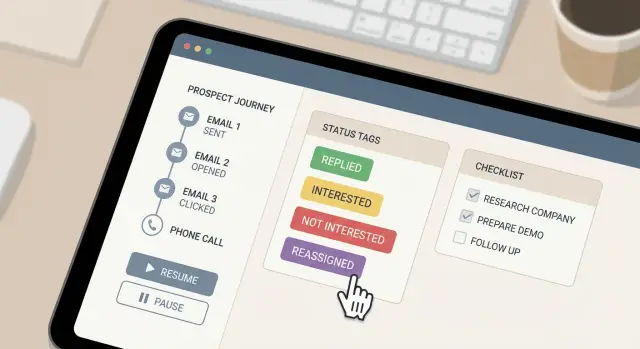
Why duplicate touches happen (and why they matter)
Duplicate touches happen when a prospect gets the same step twice, or gets follow-ups that assume they never replied. In a real inbox, it looks like this: they answer your question, and two days later they receive a “Just checking in” from the same thread. Or two reps email them separately because both think they own the lead.
Most sequencing tools run on timers. Your sales process runs on people, handoffs, and changing information. Unless something clearly tells the sequence to stop, it keeps counting down.
Duplicates usually show up in a few moments:
- A prospect’s status changes (Interested, Do-not-contact), but the sequence keeps running.
- A reply arrives late, after the next step was already queued.
- A lead gets reassigned, and the new owner enrolls them again without seeing the full history.
- Two systems (CRM and sequencer) disagree about who is active.
Duplicates reduce replies and trust fast. Even when it’s an honest mistake, it reads as spammy or careless. Over time, it can also hurt deliverability because repeated nudges increase complaints, unsubscribes, and negative engagement.
Pausing and resuming sequences isn’t just about “stopping emails.” It’s about using clear rules so anyone can safely handle a late reply, a status change, or a handoff without awkward extra touches.
Key terms: touch, sequence, status, owner, and stop rules
A lot of duplicate touches happen because teams use the same words to mean different things.
A touch is any planned attempt to contact a prospect. Usually it’s an email step in a sequence, but it can also be a manual follow-up or an automated message triggered by an action. Touches add up in the prospect’s inbox, even if they come from different people.
A sequence is an ordered set of touches with timing rules (Step 1 today, Step 2 in 2 days, Step 3 in 5 days). Treat it like a schedule, not a pile of templates.
A status is the prospect’s current state. Keep it small, visible, and tied to action. For example:
- New
- Active
- Paused
- Replied
- Closed
- Do-not-contact
An owner is the person responsible for the next action. Ownership answers: who replies, who follows up, and who is allowed to resume after a handoff.
Stop rules decide what happens to already scheduled emails when status changes. Define these once, then apply them consistently:
- If status becomes Replied, cancel all future steps immediately.
- If status becomes Do-not-contact, cancel future steps and block re-enrollment.
- If status becomes Paused, freeze the schedule but keep their place in the sequence.
- If status becomes Closed, cancel future steps and mark complete.
If you can answer “What happens to the next scheduled email right now?” for every status, you’ll prevent most duplicates before they start.
Set up clear status rules before you start sending
Duplicate touches often start with one simple problem: two places track the “truth” about a prospect. A CRM says one thing, your sequence tool says another, and the sequence keeps sending because it never got a clear stop signal.
Pick one source of truth for prospect status, then make everything else follow it. If your team updates status in the CRM, your sending tool should sync and check that status before each scheduled send. If your sending tool is the source of truth, make it the only place people change status.
Keep statuses action-based. The goal isn’t to describe every situation, it’s to drive behavior that prevents accidental sends.
A simple set that works for many teams:
- Active: sequence can keep sending
- Interested: stop sends, route to a human follow-up
- Not interested: stop sends permanently
- Unsubscribed: stop sends permanently and suppress future enrollment
- Out of office or Later: pause until a date
Be strict about stop statuses. Unsubscribed and Not interested should always stop future sends, even if someone tries to re-enroll the lead later. Interested should also stop automation so you don’t send an automated nudge while you’re in a real conversation.
Pause statuses need a clear resume trigger. “Out of office” should pause until a return date, then resume at the next step (not step one).
Reply handling that prevents extra sends
The cleanest way to avoid duplicate touches is to treat any reply as an automatic stop signal. If a prospect replies at 9:02 AM and your next step is scheduled for 9:05 AM, you don’t want that follow-up going out while you’re reading their message.
A simple rule that works: a detected reply immediately halts all scheduled steps for that prospect and marks them as Replied. Then route the thread to a single owner so one person is responsible for the next move.
Different replies should trigger different outcomes:
- Interested: stop the sequence and continue manually in the same thread.
- Not interested: stop the sequence and mark do-not-contact so they aren’t re-enrolled.
- Out of office: pause with a resume date after they’re back.
- Bounce: stop and fix your setup before trying again.
- Unsubscribe: stop immediately and suppress future sends.
Example: a prospect replies “Back next Monday” to step 2. Mark Out of office, pause the sequence, set a resume date for Tuesday morning, and continue with the next step rather than repeating what they just answered.
Step-by-step: how to pause a sequence cleanly
When something changes mid-sequence (a reply, a new owner, wrong fit), the safest move is to stop messages before you change anything else.
A clean pause flow:
- Pause the prospect first. Don’t edit steps, templates, or owners while sends are still active.
- Check for queued sends. Make sure there are no upcoming steps waiting to go out.
- Set a clear status and next action (Replying manually today, Call needed, Move to nurture).
- Leave a short note: what happened, what you’re waiting on, and when to review.
- Only unpause when the next touch is intentional.
“Confirmed paused” means one source of truth: the prospect is paused, there are zero future sends queued, and the record clearly shows what happens next.
Step-by-step: how to resume without repeating steps
The risk isn’t the pause. It’s what happens right after: a queued follow-up fires, and then your resumed sequence sends again.
Start with a short cooldown window. If a prospect was just emailed today (or replied today), wait until the next sending day before automation can send again. This prevents same-day doubles.
Then:
- Confirm the last completed touch and the exact time it went out.
- Check what is already scheduled. If something is queued, keep it or cancel it, but don’t stack another step on top.
- Resume from the next unfinished step, not step 1.
- Apply the cooldown window before the next send time. If you must resume now, shift the next step out past the cooldown.
- If anything is unclear (multiple owners, missing history, weird timing), send one manual message that fits the thread, then keep automation paused until the record is clean.
Example: a prospect got follow-up #2 yesterday, then you paused due to reassignment. When you resume, you keep the history, verify nothing is queued for today, and schedule follow-up #3 for the next allowed day.
How to handle late replies without awkward follow-ups
Late replies are normal. The awkward part happens when automation keeps going and sends step 4 right after someone finally answers step 2.
Treat any reply as a stop signal first, then decide what happens next.
When step 3 already went out
If a prospect replies after step 3 already sent, don’t pretend the earlier emails didn’t happen. Acknowledge their reply, answer their question, and move forward in the same thread. If the sequence is still active, pause it immediately so you don’t send another follow-up while you’re typing.
A practical rule:
- If the reply shows interest, turn it into a human conversation.
- If it’s “not now,” set a clear next date and keep automation stopped until that date.
To prevent a “reply + next step” collision, add a reply buffer. Many teams use a 60 to 120 minute hold so a queued email can’t go out right after a reply arrives.
Replies after X days: restart, manual, or close
Decide upfront what “late” means for your team (7 days, 14 days, 30 days). After that point, choose one path: continue manually (most common), close the lead, or restart the sequence (rare).
Example: someone replies 18 days later with “Sorry, busy. What is this about?” Don’t restart from step 1. Reply manually with a one-paragraph recap and one clear question.
Reassignment and handoffs: keeping the thread and history intact
Reassignments are a common moment where duplicate touches sneak in. One person marks a lead as “handed off,” another person enrolls them again “just to be safe,” and the prospect gets two follow-ups on the same day.
Start with one rule: keep one active sequence per prospect. If someone new takes over, transfer ownership of the existing record instead of creating a new one.
A good handoff needs two things: the full send history (what was sent and when) and the current status (and why). Before switching the owner, capture:
- Current status and the reason (for example, “asked to follow up next month”)
- Last email sent and date/time
- Any replies or objections that matter
- Next planned touch (or why it should stay paused)
If you truly need to restart (for example, the old sequence no longer fits), don’t go back to step 1. Write a new first message that acknowledges the context, such as: “Circling back on your note from last month - should I speak with you or someone else now?”
Dedupe rules that stop double-enrollment and double-sending
Duplicate touches usually happen when the system thinks it’s talking to two different people, or when someone is re-enrolled while an old sequence is still active.
A strong baseline rule: one active sequence per email address. If someone is already in a running sequence, new enrollment should be blocked or should replace the existing enrollment with a clear reason logged.
Email is the best dedupe key, but it fails when someone replies from a different address (work vs personal). If you also store company and domain, you can catch many “same person, different inbox” cases.
Rules that prevent double-sending:
- Only one active sequence per email address at a time.
- Dedupe on email, and also check domain + company when available.
- Block all sending when status is Replied, Do-not-contact, Unsubscribed, or Closed.
- Add a short grace period after any manual email (for example, 12 to 24 hours) before automated steps can fire.
- If ownership changes, keep the same prospect record instead of creating a new one.
Example: an SDR sends a manual “quick question,” then re-enrolls the lead. Without a grace period, an automated step can send the same day and look spammy. With the grace period, automation stays quiet until you decide the next move.
Common mistakes that create duplicate touches
Duplicate touches usually come from one thing: the system still thinks an email should go out, even though a human thinks it shouldn’t.
The biggest slip-ups:
- Pausing a sequence but leaving queued emails ready to send
- Updating status without applying stop rules to the sending queue
- Re-enrolling the same prospect after copying them into a new list
- Two teammates emailing the same prospect at the same time
- Resuming from the wrong step after editing the sequence
Edits are a hidden trap. If you change steps mid-flight, step numbers can shift, and what you think is “next” might not match what the system will send.
Quick checklist before you resume sending
Before you turn a sequence back on, take two minutes to confirm what will happen next:
- Make sure the prospect isn’t active in another sequence or campaign.
- Look ahead 24 hours and confirm nothing is already scheduled to send soon.
- Verify status matches the latest inbound reply.
- Confirm one clear owner.
- Preview the next step and decide if it still makes sense given what the prospect has already seen.
If anything looks unclear, don’t resume yet. Fix the record first, then continue.
Example scenario: a late reply and a clean restart
You email Taylor in a 5-step outbound sequence. After step 2, Taylor replies: “Not a priority right now. Check back next quarter.” Step 3 is scheduled for tomorrow.
First move: pause immediately so step 3 doesn’t go out.
A clean flow:
- Pause the prospect the same day the reply arrives.
- Update status to something like “Future interest: next quarter” (not “No reply”).
- Set a reminder for the agreed date (for example, the first Monday of next quarter).
- Keep the thread and notes attached to the prospect record.
When the reminder hits, resume at the next logical touch (not step 1) and reference what they asked for.
A short restart message:
“Hi Taylor - you mentioned next quarter could work. Is it worth a quick chat this week, or should I circle back later in the month?”
If Taylor gets reassigned mid-wait (from Sam to Jordan), don’t re-enroll them. Transfer ownership, keep the same history, and have Jordan reply in the same thread.
Next steps: make this repeatable for your team
Agree on a small set of statuses that change what the system should do. Three to five is usually enough. Define each status in plain language and tie it to one outcome: keep sending, pause, or stop.
Then lock in two safeguards:
- A reply buffer (60 to 120 minutes) so queued emails can’t fire right after a reply.
- A re-enrollment cooldown (often 7 to 14 days) so someone can’t be thrown back into automation immediately after a pause, reassignment, or late reply.
A light weekly routine keeps issues from piling up: review paused prospects, scan scheduled sends for the next few days, and spot-check late replies to make sure sequences are stopped or adjusted.
If you want fewer moving parts, it helps to keep sequencing, sending, and reply handling in one system. LeadTrain (leadtrain.app) is built around that idea, with domains, mailboxes, warm-up, multi-step sequences, and AI-powered reply classification in a single place, which makes it easier to apply the same pause/stop rules consistently across a team.
FAQ
What exactly counts as a “duplicate touch” in an email sequence?
Duplicate touches happen when automation keeps sending after something changed, like a reply, a status update, or a reassignment. They matter because they make you look careless and spammy, which can lower reply rates and increase unsubscribes or complaints.
What’s the simplest rule to stop duplicate emails after a prospect replies?
Use one clear rule: any reply stops all future scheduled steps immediately. Then assign the thread to one owner to handle next actions manually, so you don’t get an automated follow-up while a real conversation is happening.
Which prospect statuses should pause a sequence vs stop it completely?
Keep a small set of action-based statuses and tie each one to a send behavior. For example, Active = keep sending, Interested/Replied = stop, Out of office/Later = pause until a date, and Not interested/Unsubscribed = stop permanently and suppress future enrollment.
What steps should I follow to pause a sequence safely?
First, pause the prospect so nothing else goes out while you’re making changes. Then check the sending queue to confirm there are zero scheduled emails pending, set the new status and next action, and leave a short note so the next person knows why it’s paused.
How do I resume a sequence without repeating earlier steps?
Resume from the next unfinished step, not step 1, and add a short cooldown so you don’t send twice in the same day. Before unpausing, confirm what already sent, what’s queued, and whether the next message still makes sense given the latest context.
What should I do when someone replies late but the next step is already scheduled?
Treat late replies as a stop signal first, even if another step already went out. Reply manually in the same thread, acknowledge their message, and keep automation paused until you intentionally decide the next send date or next step.
How can teams avoid duplicates when a lead gets reassigned to a new rep?
Keep one active sequence per prospect and transfer ownership of the existing record instead of enrolling them again. The new owner should inherit the full send history, current status, and next planned action so they don’t “start over” and create duplicates.
What dedupe rules prevent double-enrollment and double-sending?
A good default is one active sequence per email address and block new enrollments while one is running. If you can, also check company and domain to catch “same person, different inbox” cases, and prevent sending when status is Replied, Closed, Do-not-contact, or Unsubscribed.
What are the most common mistakes that create duplicate touches?
Common causes are pausing without clearing queued sends, changing status without canceling scheduled steps, re-enrolling after list imports, and two teammates emailing at once. Editing sequences mid-flight can also shift step order, so what you think is “next” might not match what the system sends.
What should I verify before turning a paused sequence back on?
Check that they’re not active in another campaign, look ahead 24 hours for queued sends, confirm status matches the latest reply, and verify a single owner. If anything looks unclear, keep automation paused and send one manual message instead of risking an awkward double-send.