Inbox foldering for SDRs: Gmail and Outlook setup that works
Inbox foldering for SDRs: a practical Gmail and Outlook setup to sort replies fast, surface hot leads, and keep follow-ups on track.
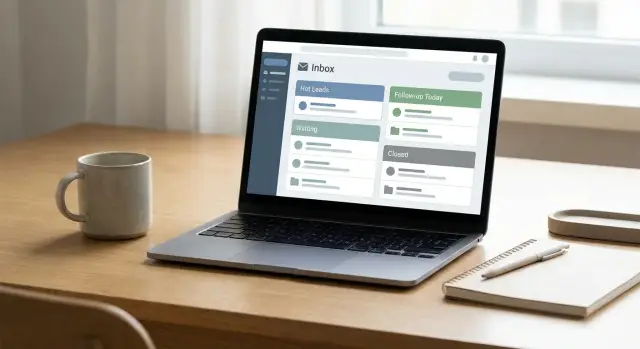
Why high reply volume breaks your inbox
A quiet inbox is easy to manage. A busy one is where deals get lost.
When a campaign hits, replies arrive in waves: real interest, quick "not now," auto-replies, bounces, and unsubscribe requests. If everything lands in one place, the messages that matter get buried. Hot leads wait too long, follow-ups slip, and handoffs to an AE get missed because nobody can see what’s actually urgent.
A lot of SDRs try to solve this with search. It works when you have time to think. It fails when you’re moving fast between calls and email and can’t remember whether you already replied. Search also doesn’t give you a clear next-action view, so you keep opening the same threads.
The point of foldering and labels isn’t perfection. It’s making sure every reply lands in a small set of places you trust.
A simple model is:
- Hot: needs a fast response
- Today: needs same-day action
- Waiting: you’re waiting on them (or an AE)
- Closed: done (won, lost, not a fit, or opted out)
A common failure case: you get 40 replies before lunch. A prospect says, "Can you do 2pm?" It lands between five out-of-office messages and a few long objections. You see it at 6pm, and the meeting is gone.
What fixes this is a practical setup in Gmail or Outlook: a small bucket system, a few rules that catch obvious noise without hiding opportunities, and a daily habit that keeps replies moving.
A simple folder and label system that works for SDRs
With high reply volume, the goal is simple: every message lands in a small number of buckets that tell you exactly what to do next.
Stick to 4 to 6 buckets you can use for months. Too many and you’ll hesitate. Too few and everything becomes "later," which is how hot leads get buried.
A practical set that works in both Gmail and Outlook:
- Hot
- Follow-up Today
- Waiting
- Later
- Closed
If you truly need it, add one optional bucket for Admin (billing, tools, internal notes, deliverability alerts). Keep it optional so it doesn’t become a junk drawer.
Define the buckets so the whole team uses them the same way:
- Hot: clear intent or a direct request (pricing, timeline, "send a deck," "can we talk").
- Follow-up Today: you owe a reply or a calendar action before end of day, even if interest is mild.
- Waiting: the ball is in their court (you asked a question, sent times, or they said "next week").
- Later: real opportunities that aren’t time-sensitive yet (not messages you’re avoiding).
- Closed: stop touching it (not interested, unsubscribe, wrong person, finished deal).
Keep naming consistent across Gmail labels and Outlook folders/categories. When someone covers a teammate or works from a shared inbox, the buckets should mean the same actions.
If your outbound tool classifies replies (LeadTrain does), map those categories into the same buckets so your inbox stays readable without extra clicks.
Step-by-step: Gmail labels, filters, and quick triage
In Gmail, labels usually beat folders because one email can carry more than one label. Keep the system small so you’ll still use it when replies spike.
1) Create a simple label set
Start with labels that match actions, not topics. Keep it one level deep.
A workable set:
- New
- Hot Lead
- Waiting
- Not a Fit
- Ops (bounces, unsubscribes, out-of-office)
2) Decide on Inbox Categories
Categories can help if you get lots of newsletters and product emails. If most of your traffic is prospects, categories often hide important threads. Try disabling categories for a week and see if triage gets faster.
3) Add a few filters for obvious noise
Filters should reduce noise without burying opportunities. Create a few, then stop.
Examples:
- If the subject includes "out of office" or "auto-reply": apply label Ops and skip the inbox.
- If the body includes "unsubscribe": apply Ops (and keep it out of your main view).
- If a message is clearly a vendor notification you don’t act on: label Ops.
Keep prospect replies in the inbox. The goal is to remove guaranteed non-sales items, not to auto-decide who is interested.
4) Use stars and colors sparingly
Give each star/color one meaning and keep it consistent. For example: red star = reply needed today. Don’t create five signals nobody remembers.
5) Turn on Templates for fast replies
Enable Templates so you can answer common replies in seconds (pricing request, "not now," "who are you," meeting options). After a big send, this keeps you fast without sending sloppy one-liners.
Step-by-step: Outlook folders, rules, and categories
Outlook can handle high volume well if you give it a few clear buckets and a small set of status signals. Important replies stay visible. Everything else gets out of your way.
1) Create your core folders (or Search Folders)
Build folders that match actions, not feelings. Keep it tight.
A practical set:
- Needs reply
- Meetings booked
- Not a fit
- Bounces and unsubscribes
- FYI and receipts
If your inbox is huge, consider Search Folders for unread, flagged, or key accounts. They’re faster than hunting through folders.
2) Use Categories as status
Categories should mean status, not topic. Pick 3 to 4 that every SDR uses the same way.
For example:
- Hot
- Today
- Waiting
- Do not contact
3) Build rules that reduce noise (without hiding leads)
Create rules that move or categorize low-value mail automatically, while keeping real replies in front of you.
Good candidates:
- Move automated receipts and notifications to FYI and receipts.
- Move internal CC floods to a quiet folder (or auto-mark as read).
- Categorize calendar responses into Meetings booked.
- Move bounce notices into Bounces and unsubscribes.
- If something looks like a prospect reply (Re:, questions, meeting words): categorize as Hot rather than moving it.
Use Focused Inbox carefully. If you keep it on, make sure prospect replies stay in Focused and only true noise goes to Other.
Pin the views you use every day: unread, flagged, and a search for Category: Hot. When 100 replies hit, you should see Hot first, then Today, without scrolling.
Rules that sort noise without hiding real opportunities
Rules should reduce what you see first, without pushing real leads out of sight. The safest approach is one trigger per bucket, based on intent (what the message means), not just who sent it.
Start by separating messages that will never turn into a meeting. They’re high-volume, low-value, and easy to spot.
Automations worth setting up:
- Bounces: phrases like "delivery has failed," "undeliverable," "mailbox not found."
- Unsubscribes: "unsubscribe," "remove me," "opt out," "do not contact."
- Auto-replies (OOO): "out of office," "automatic reply," "I am away."
- Meeting confirmations: calendar invites/updates, "accepted," "invitation," ".ics" attachments.
- Newsletters and vendor noise: mailing list patterns and repeat marketing subjects.
After that, be gentle with "maybe" messages. A good rule labels or categorizes, but doesn’t move or archive. For example, if a reply contains "send info" or "pricing," tag it as Interested but leave it in your main view so a human still sees it.
The safety net that prevents missed hot leads
- Never auto-archive anything that contains a question mark or phrases like "can we," "when are you free," "book," or "calendar."
- Avoid rules that rely on the sender domain for replies. Prospects forward and reply from different addresses.
- Keep a simple "Needs review" bucket for messages that match two categories (like an OOO that also asks you to follow up next week).
If you use reply classification (LeadTrain does this), treat rules as a backup, not the source of truth. Your inbox should make real interest louder.
Clear definitions so your team labels the same way
A folder/label system only works if everyone means the same thing by each label. Otherwise one SDR marks a reply as Hot and another calls the same reply Today, and handoffs get messy.
Keep the set small, write definitions in plain language, and tie each label to a response time and next action. If a new team member can’t sort a reply in 10 seconds, the label is too fuzzy.
Suggested definitions:
- Hot: asked for a call, pricing, a proposal, or sent clear buying signals. Response time: 15 to 30 minutes. Next action: reply and propose times.
- Today: will go stale if you wait. Response time: by end of day. Next action: reply, answer objections, or ask the next question.
- Waiting: you asked a clear question and you’re waiting. Response time: none now (check daily). Next action: set a follow-up reminder; don’t keep reopening the thread.
- Later: positive but not ready (timing, budget, internal review). Response time: scheduled (days or weeks). Next action: set a date-based follow-up.
- Closed: no further action (not interested, unsubscribe, wrong person, invalid, bounce). Response time: never. Next action: stop outreach and keep records clean.
Quick test: two SDRs read "Not now, check back next quarter." They should both choose Later, not Waiting.
If you use auto-categories like interested/not interested/out-of-office, map them into the same buckets so the team still works from one shared playbook.
Daily workflow: how to triage fast and never lose a lead
High reply volume is mostly a timing problem. If you keep one eye on the inbox all day, you still miss hot leads because you never fully process anything.
Work the inbox in focused blocks, usually 3 to 5 times per day. A common cadence is morning, midday, and late afternoon, plus two shorter blocks on heavy-send days.
Process by priority, not arrival time. Start with Hot, then Today, then Waiting.
A fast triage loop:
- Read one thread and decide the next action in 10 to 30 seconds.
- Reply now if it takes under 2 minutes.
- If it needs time, Snooze it (or set a reminder) for a specific moment.
- If you’re waiting on them, label it Waiting and move on.
- If it’s noise (OOO, bounce, unsubscribe), route it and archive.
Don’t use Unread as a to-do list. Unread should mean "not processed yet," not "I might come back later." Snooze helps keep the inbox clean and brings work back when it matters.
At the end of each block, aim for an Inbox Zero-ish finish: nothing unlabeled, nothing sitting there "just in case." If you need a short follow-up list, keep it outside the inbox (CRM tasks, notes doc, or a small queue inside your outreach tool).
Example: after a campaign send, you might have 120 replies. In the first 15 minutes, your only job is to surface the 5 to 10 Hot threads and reply to those first. Everything else gets a label and a time to return.
Common mistakes that cause missed hot leads
Most missed hot leads happen when the system creates extra work, or worse, hides the good replies.
Mistakes that cost you deals
- Creating 20+ folders or labels "just in case." After a week, you stop checking half of them.
- Using Unread as your task list. Under volume, unread becomes "everything."
- Auto-filing any email that contains words like "interested." People write "not interested" or quote your message.
- Mixing prospect replies with admin and marketing noise in the same view.
- No shared team rules. If one SDR uses "Warm" as a label and another uses it as a folder, handoffs break.
A classic example: you filter messages with "interested" into a folder called Hot. A prospect replies, "Not interested right now, but ask me in Q2." It gets buried, someone assumes it’s handled, and the follow-up never happens.
If you use reply classification, treat it as a signal, not a hiding place. Keep a visible "needs reply today" queue that stays in your main view, and only file things away once a next step is set.
Quick checklist to audit your setup in 10 minutes
A fast audit can show why your inbox is getting loud. This works for Gmail and Outlook and keeps the system practical.
Set a 10-minute timer:
- Open your Hot and Today views. Each should be one click away and show only items that need action now.
- Pull up Waiting items in under 10 seconds using one label/folder/category.
- Spot-check noise handling: bounces, unsubscribes, and out-of-office replies should not show up in Hot.
- Confirm there’s exactly one place where meeting confirmations go.
- Scan your rules/filters. If you can’t explain why a rule exists, it’s a drift risk. Fix it or remove it.
Reality test: open 20 recent replies from your last campaign and count misfiles. If more than two are in the wrong place, tighten rules.
If you use a reply classifier (like LeadTrain’s interested/not interested/out-of-office), compare its buckets to your inbox buckets. The names don’t have to match, but the path to Hot should be obvious.
Put a 15-minute monthly review on your calendar. Most inbox systems fail slowly, one "quick" rule at a time.
Example: handling 100+ replies after a send
Monday, 9:05 a.m.: you launch a campaign. By 10:30, you have 120 new replies. This is where your setup either saves the day or buries your best lead.
First, do a 3-minute sweep with whatever automation you already have (Outlook rules, Gmail filters, or reply classification). Sort the obvious ones: out-of-office, bounces, unsubscribes. These should never sit in the same view as real conversations.
Then do one fast pass to tag what needs human judgment. A simple split:
- Hot: clear buying signal, asks for time, pricing, or next steps
- Today: real reply but not urgent (questions, mild interest, objections)
- Waiting: you owe a follow-up later or you’re waiting on them
- Noise: auto-replies missed by rules, wrong person, vague replies
Two habits prevent Hot from getting stuck behind long threads: keep Hot in a dedicated view that only shows Hot, and flag only Hot (if everything is flagged, nothing is).
Automate anything factual and repetitive (OOO, bounce, unsubscribe). Keep meaning-based decisions manual (interest level, timeline, next step). If you use a platform like LeadTrain, its reply classification can pre-sort responses like interested, not interested, out-of-office, bounce, and unsubscribe so you can focus on the conversations that can turn into meetings.
Before you log off, do an end-of-day reset:
- Hot is at zero (replied, meeting booked, or assigned)
- Today has a next action (reply or task) or moves to Waiting
- Waiting has a date (reminder, follow-up day)
- Noise is archived
Next steps: make it repeatable and reduce manual sorting
A good setup only works if everyone uses it the same way. Pick a small set of reply buckets and write down what qualifies for each one. Keep names consistent across Gmail and Outlook so handoffs stay clean.
Treat rules and filters like a living system. New campaigns create new reply patterns, and old rules start catching the wrong things. A short weekly cleanup prevents "where did that hot reply go?" moments.
To make it repeatable:
- Create a one-page reply map with 5 to 7 buckets and one example reply for each.
- Assign an owner for inbox rules who keeps naming and changes consistent.
- Do a weekly rule review: check the last 20 messages each rule moved and confirm they belong there.
- Track one metric: time from an interested reply to first human response.
- Freeze changes for a week after updates so you can tell what helped.
When volume grows, manual sorting becomes the bottleneck. That’s when tools that consolidate sending and automatically classify replies can help reduce the scanning work. For example, LeadTrain (leadtrain.app) categorizes responses like interested, not interested, out-of-office, bounce, and unsubscribe, so your team can focus attention where it matters.
Pick one change to implement today, not five. A good start: make sure every interested reply triggers a visible signal (label/category) and lands in the one place your team checks first. Run it for a week, review misses, then adjust.
FAQ
What’s the simplest folder/label system I can use as an SDR?
Use 4–6 buckets that map to actions: Hot, Follow-up Today, Waiting, Later, and Closed. The goal isn’t perfect organization; it’s making sure every reply lands somewhere that tells you what to do next.
Why does search stop working when replies spike?
Search helps when volume is low, but it fails when you’re moving fast because it doesn’t create a clear next-action queue. A bucket system makes urgency visible so hot replies don’t get buried between auto-replies and long threads.
What should I filter out automatically without risking missed leads?
Only filter the messages that are almost never sales opportunities: bounces, unsubscribe requests, and out-of-office auto-replies. For anything that might contain intent, label or categorize it, but keep it visible in your main view.
What counts as “Hot” versus “Today”?
Make Hot strict: direct requests like pricing, meeting times, “send a deck,” or clear buying signals. If you treat mild interest as Hot, the queue becomes noisy and you’ll start ignoring it.
How do I decide between “Waiting” and “Later”?
A safe rule is: if you’re waiting on the prospect or an AE to respond, it’s Waiting; if it’s positive but not time-sensitive, it’s Later. Add a specific reminder date so “Later” doesn’t become a graveyard.
Should I use Gmail Inbox Categories for SDR work?
No, categories often hide real prospect threads when your inbox is mostly outbound replies. Try disabling them for a week and measure whether you triage faster and miss fewer urgent replies.
What’s the quickest way to set this up in Gmail?
Use labels for actions and keep them one level deep, then add a few filters for obvious noise like out-of-office, unsubscribe, and bounce phrases. Keep prospect replies in the inbox and avoid complex rules that try to guess intent.
What’s the quickest way to set this up in Outlook?
Create core folders (or Search Folders) for action queues and use Categories as simple status signals like Hot, Today, Waiting, and Do not contact. Use rules to move pure noise, but for potential leads, categorize instead of moving so they stay visible.
What daily workflow prevents missed hot leads?
Work in focused blocks 3–5 times per day and process by priority: Hot first, then Today, then Waiting. Decide the next action quickly, reply immediately if it’s under two minutes, and snooze or set a reminder for anything that needs time.
Is reply classification worth using, and how does it fit with inbox buckets?
Yes, it helps most when it maps directly into your buckets so you spend less time scanning and sorting. For example, LeadTrain can classify replies like interested, not interested, out-of-office, bounce, and unsubscribe so your human attention goes to the conversations that can turn into meetings.