Email preheader text for outreach: write better preview snippets
Email preheader text shapes the inbox preview snippet. Learn how clients generate it, what affects it, and how to write it to support higher opens.
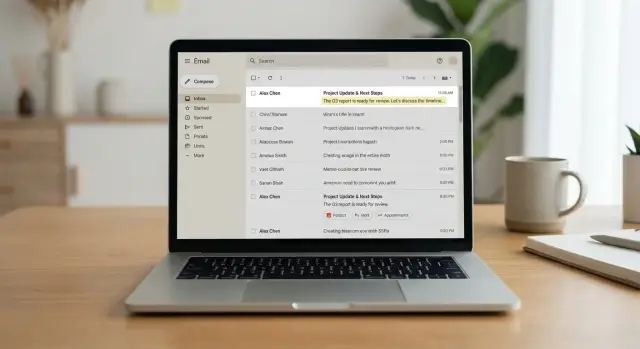
What preheader text is and why it matters for outreach
Email preheader text is the short preview line that shows next to (or under) your subject line in most inboxes. It’s often pulled from the first words of your email.
For cold outreach, that tiny snippet matters almost as much as the subject. The subject grabs attention. The preview is where the reader looks for proof: is this relevant, or just another pitch? If the preview feels personal and clear, you earn the open. If it looks generic or salesy, you lose it even with a decent subject.
Different email apps display previews differently:
- Gmail usually shows the subject, sender name, and a gray preview line from the start of your email.
- Outlook often shows a preview too, but spacing, reply headers, and signatures can sneak into it.
- iOS Mail typically stacks subject on top and preview under it, so the first words matter a lot.
The preview isn’t optional. If you don’t plan it, the email client will still show something, and it might be the worst possible line: “Hi there,” your legal footer, “View in browser,” or a broken template token.
A simple way to think about it: your subject creates curiosity, and your preheader finishes the thought. A subject like “Quick question about onboarding” gets much stronger when the preview adds context: “Saw you’re hiring SDRs, how are you handling first-week ramp?”
How inbox preview snippets are generated
Most inboxes show two things before someone opens your message: the subject line and a short preview snippet. That snippet is usually the first readable text the email client can find near the top of the message body.
In many cases, the preview is simply your opening sentence. If your email starts with “Hi Sam,” the next words often become the snippet. If it starts with a disclaimer, an unsubscribe line, or “View in browser,” that’s what people see instead.
HTML emails add a twist. Some senders place a short “hidden” line at the top of the HTML (styled to be invisible) so the client picks it up as the preview. Sometimes it works, sometimes it doesn’t. Some clients ignore hidden elements, others include them, and some blend them with nearby text. If the hidden line is overly aggressive (like keyword stuffing), it can also look strange in certain previews.
If the top of an email doesn’t contain real text, clients improvise. They may grab image alt text, boilerplate navigation, a “Sent from my iPhone” line, or legal text.
Previews also vary because each inbox has its own rules and space limits. Even two people using the same client can see different previews depending on layout settings, conversation view, font size, or company security banners.
Example: one prospect on Gmail mobile sees your real opener (“Quick question about your Q1 pipeline...”), while another on desktop Outlook sees a warning banner (“This message originated outside your organization...”). You can’t fully control that, but you can control what’s in your first real line.
Why plain text emails still get a preview snippet
Many people assume preview text only exists in HTML emails. But most inboxes will still show a preview snippet for plain text messages.
That snippet isn’t a special field. It’s simply the first readable text the email client can grab and fit next to the subject line.
Your first sentence becomes the preheader
In a plain text email, the first sentence is usually your de facto preheader. If you start with a vague opener, that’s what gets shown.
If your email begins with “Hi Alex,” many clients will display “Hi Alex,” as the preview. It adds no value and pushes your real point out of the visible area.
Line breaks matter too. Some clients stop early when they hit a blank line. If your first line is only a greeting or a one-word question, your preview can look empty or unhelpful.
When signatures and disclaimers hijack the preview
If your opening is short, the client may pull text from later. That’s how signatures, legal disclaimers, or unsubscribe lines end up in the preview, especially on mobile.
A common pattern: you write “Quick question” on the first line, add a blank line, and your signature is long. The preview becomes “Quick question - Sent from my iPhone - Confidentiality notice...”
A quick “preview audit” helps. Look at your first 120 characters and fix the obvious problems:
- Put the value first, not the greeting.
- Avoid blank lines before your core point.
- Keep your signature short in cold outreach.
- Push disclaimers to the very end (or remove them if you can).
What a good preheader does (and what it should avoid)
A good preheader is the missing second sentence of your subject line. The subject gets attention, but the preview often decides the open. When your preheader adds new information (instead of echoing the subject), the inbox preview feels complete.
The best preheaders answer one question fast: why open this right now? If your subject is curiosity, the preheader should be clarity. If your subject is clear, the preheader should be the proof or the next detail.
What to aim for
Match the subject, but don’t repeat it word-for-word. If your subject is “Quick idea for {{Company}}”, a stronger preheader is “Saw you hiring 3 SDRs, this fixes the follow-up gap.” Same topic, new value.
Keep it concrete. Even one detail changes the tone from “marketing” to “personal”, like a role, a number, or a trigger.
Example:
Subject: “Question about your outbound”
Preheader: “Not pitching, just a quick note on reply handling”
That second line reduces anxiety and tells the reader what kind of message it is.
What to avoid
Avoid clicky language that sounds like an ad. Words like “Amazing,” “Limited time,” or “You won’t believe” hurt trust in cold outreach.
Also avoid filler that wastes preview space: “Hope you’re well,” “Just checking in,” or “Following up.” In many inboxes, those phrases become the preview, and they give the reader no reason to open.
One more trap: front-loading legal footers, unsubscribe text, or boilerplate can steal the snippet. Keep that content, but don’t let it be the first thing someone sees.
Length, wording, and truncation basics
Most opens are decided in one glance. That’s why preheaders work best when the first clause can stand on its own, even if everything after it gets cut off.
How long is “short” in real inboxes?
There’s no single safe number. The visible preview changes by device, inbox layout, and whether the user has message list density turned up. Mobile usually shows less than desktop, and a long subject line can push the preview shorter.
A practical rule: write a tight first clause that still makes sense if only 6 to 10 words show.
Front-load what matters
Put the most specific words first: the who, the problem, and the payoff. Don’t spend your first characters on greetings or softeners.
If you’re unsure what to front-load, this order usually works:
- Their goal or pain
- A concrete hook
- Proof or context
- The next step
Then read only the first 40 to 60 characters. If that slice feels generic, rewrite until it sounds like it could only be meant for your recipient.
Truncation-friendly wording
Truncation usually chops off the end, so don’t save the important part for last. Also avoid openers that need the second half to make sense (“Wanted to ask if...” ). Prefer complete mini-sentences or crisp fragments.
Compare these previews:
- Weak: “Hope you’re well - I wanted to ask if you have time...”
- Strong: “Idea to cut onboarding time by 20% - quick question”
Step-by-step: writing preheaders for cold outreach
Step 1: Write the subject first (set the promise)
Start with one clear idea: what is this email about, and why should they care today? Your preheader shouldn’t compete with the subject. It should support it.
Example subject: “Quick question about your outbound”
It’s vague on purpose. The preheader is where you earn the click.
Step 2: Draft 2-3 preheaders that complete the thought
Write a few options that finish the sentence the subject starts. Keep them specific and easy to understand.
A few patterns that work:
- Add context: “Saw you’re hiring SDRs - curious how you handle follow-ups”
- Add value: “I can share a 3-step sequence that got replies in this niche”
- Add a gentle ask: “Worth a 10-minute chat if I send a short idea?”
Pick the one that’s most honest about what the email actually does.
Step 3: Make the first body line match the preheader (plain-text safety)
Many inboxes build the preview from the first line of the email body. If your preheader says one thing but the first line says something else, the preview looks broken.
Bad combo:
Subject: Quick question
Preview: “Idea to improve replies”
First line: “Hope you are doing well”
Better combo:
Subject: Quick question about your outbound
Preview: “Saw you are targeting IT leaders - quick idea to lift replies”
First line: “Saw you are targeting IT leaders - quick idea to lift replies. Are you open to a 2-line suggestion?”
Step 4: Send test emails and compare previews
Before sending to prospects, send the email to yourself and a teammate. Check a couple common views (desktop and mobile if you can). You’re looking for two things: does the preview read smoothly, and does it add meaning instead of repeating the subject?
Also watch for preview killers like long signatures, legal disclaimers, or “View in browser” lines.
Step 5: Iterate using reply quality, not opens alone
Opens are useful, but they don’t tell the whole story. A clever preheader can win an open and still lose the reply if the body doesn’t deliver.
Track outcomes by version: opens (directional), positive replies, and negative signals (unsubscribes, “not interested”). If Version A gets slightly fewer opens but more real conversations, keep it.
Common mistakes that hurt previews and opens
A small mistake in the first line can turn a good offer into a preview that looks spammy, generic, or confusing.
The most common issue is previewing the wrong text. If your email starts with an unsubscribe sentence, a legal disclaimer, or an internal note like “[Sent via tool]”, many inboxes will show that first. Keep compliance and footer lines, but push them down so the first 1-2 lines carry meaning.
Another quiet killer is wasting the preview on a long greeting. “Hi John, hope you’re doing well” might be polite, but it burns the most valuable space.
Repeating the subject line word-for-word is also a missed chance. It makes your message look templated, and the preview adds no new information.
Finally, watch for placeholder leaks. If the first line contains “Hi {first_name}” or “{{company}}”, the preview instantly signals mass outreach.
A quick set of checks before you send:
- First line is value, not legal or admin text.
- Greeting is short, and doesn’t crowd out the point.
- Preheader complements the subject (doesn’t duplicate it).
- No shouty formatting or extra punctuation.
- Test email shows no broken placeholders in the preview.
Example: turning one outreach email into a stronger preview
Imagine an SDR emailing a VP of Sales after a trigger: the company just posted two SDR roles and a Sales Ops role. That usually means outbound volume is about to go up, and inbox placement and reply handling get messy.
Here’s a before-and-after showing how small changes to subject, preheader, and the first body line can make the inbox preview feel specific (not salesy).
Before (generic preview)
Subject: Quick question
Preheader: Hope you’re doing well.
First line: I wanted to reach out because we help teams improve outreach.
What the VP sees in the inbox: “Quick question - Hope you’re doing well. I wanted to reach out because...” It looks like every other cold email.
After (specific preview built around the trigger)
Subject: Saw you’re hiring SDRs
Preheader: Curious if deliverability + reply sorting is already handled.
First line (works in plain text too): Noticed the two SDR openings - if outbound volume is rising, inbox placement and triage usually become a daily headache.
Now the preview tells a complete story in one glance: what you noticed, why it matters, and what you want to ask.
A few subject + preheader pairs that stay direct:
- Subject: Noticed new SDR roles | Preheader: Are you warming new inboxes or sending cold day one?
- Subject: Re: outbound ramp | Preheader: Quick check: who owns bounces, OOO, and unsubscribes?
- Subject: One question on deliverability | Preheader: Are new domains authenticated before the first sequence?
For follow-ups, the preview should acknowledge the earlier note and add a fresh detail (not “bumping this”).
Example:
Subject: Re: SDR hiring
Preheader: One more thought - new inboxes often spike bounces in week 1.
First line: Circling back with one extra detail: when new mailboxes go live, the first week is where teams see the most bounces and spam placement.
Quick checklist before you hit send
Run this scan before you launch an outreach batch:
- Does the preview add something the subject doesn’t (a detail, outcome, or reason to care)?
- If the client ignores any hidden preheader tricks, is your first visible sentence still a good preview?
- Are disclaimers, greetings, or signatures stealing the first 1-2 lines?
- If the snippet is cut at 35 to 60 characters, do the first words still make sense?
- Does the preview match the ask inside the email so the open feels honest?
Then do an inbox reality check: send the email to a couple accounts (like Gmail and Outlook) and look at the inbox list view, not the open email.
Next steps: build a repeatable preheader process
Treating the preheader as a last-second add-on makes results swing week to week. A simple process makes it predictable.
Build a small library of subject + preheader pairs by persona. Think about the job they’re trying to do and the problem they feel, not the industry label. Keep each pair with the first sentence of the email, so you know the preview will still work even in plain text.
If you want to test this consistently, run small A/B tests where you hold the subject constant and change only the preheader. Save the winner back into your library, along with any objections it attracted.
If you’re already running sequences in a tool like LeadTrain (leadtrain.app), it helps to treat the preheader like a required field alongside the subject and first line. That way you’re not relying on whatever the inbox decides to pull into the preview.
FAQ
What is preheader text in an email?
Preheader text is the preview snippet shown next to or under your subject line in most inboxes. It usually comes from the first readable words in your email, so it can make your message feel specific and worth opening—or generic and easy to ignore.
Why does preheader text matter so much for cold outreach?
The subject gets attention, but the preheader often confirms relevance. A good preheader adds one concrete detail that finishes the subject’s thought, so the inbox preview reads like a complete, personal message rather than a template.
Where does the inbox preview snippet usually come from?
Most clients pull the snippet from the first readable text near the top of the email body. If your email starts with a greeting, a disclaimer, or boilerplate like “View in browser,” that’s what can show up in the preview instead of your actual point.
Do plain text emails have preheader text too?
Yes—plain text emails still show a preview in most inboxes. There isn’t a special “preheader field” in plain text; the client just displays the first characters it can grab, so your first sentence effectively becomes your preheader.
How do I stop “Hi there” from becoming my preview text?
Put your value or context before the greeting, or keep the greeting extremely short and immediately follow it with a specific line. If the preview shows only “Hi Sam,” you’ve spent your best space on words that don’t help the reader decide to open.
How long should a preheader be for best results?
Aim for a first clause that stands on its own, because many previews get cut off. A practical target is to make the first 40–60 characters meaningful and specific, so even a short mobile preview still communicates why the email is relevant.
Should I use “hidden” preheader text in HTML emails?
Use it carefully and don’t rely on it. Some inboxes will include hidden text, others ignore it, and some previews can look odd if the hidden line feels spammy or stuffed, so your first visible sentence should still work on its own.
How do I prevent signatures or disclaimers from taking over the preview?
Keep signatures short for cold outreach and push legal disclaimers to the very end when possible. If your opening line is brief or followed by blank lines, some clients may pull later text into the preview, which is how “Sent from my iPhone” or confidentiality notices hijack the snippet.
What’s the best way to test how my preheader will look in real inboxes?
Send test emails to a couple accounts and check the inbox list view (not just the opened message). Look for broken placeholders, security banners stealing the snippet, and whether the preview adds meaning beyond the subject instead of repeating it.
How should I A/B test preheaders without confusing the results?
Hold the subject constant and change only the preheader, then judge results by reply quality, not opens alone. If you run sequences in a platform like LeadTrain, treat the preheader and first line as a paired unit so the preview stays consistent even when clients generate snippets differently.