Email bounce and spam troubleshooting: fix deliverability fast
A practical email bounce and spam troubleshooting playbook: interpret bounce types, check SPF DKIM DMARC, and adjust copy and sending to restore inboxing.
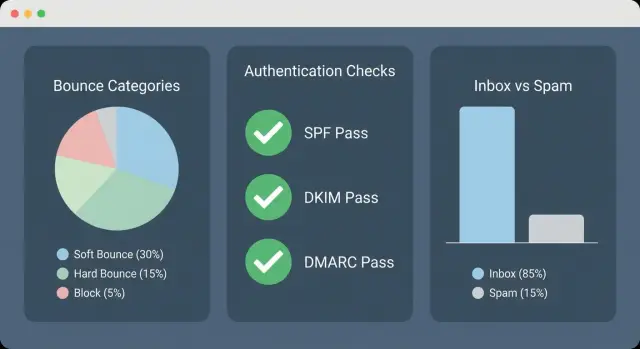
What bounces and spam placement are telling you
A bounce and a spam-folder placement are different warnings.
A bounce means the message wasn’t accepted for delivery. The receiving server rejected it and returned a reason (sometimes clear, sometimes vague). Spam-folder placement means the message was accepted, but the inbox provider decided it looked risky or irrelevant, so it got filtered.
Troubleshooting feels confusing because several things move at once: domain setup, sender reputation, list quality, and the message itself. One change can hide the real issue. A new list, for example, can raise bounces, which then hurts reputation, which then increases spam placement even for valid addresses.
The goal stays the same: reduce bounces, avoid blocks, and improve inbox placement. The right fix depends on what the signal is actually saying. Bounces are usually about address validity, authentication, sending limits, or policy blocks. Spam placement is more about trust and relevance: how your domain and mailbox are perceived, how recipients react, and whether the email looks like mass outreach.
Some fixes are quick, others take time. You can pause a weak sequence, remove risky segments, tighten targeting, and clean up formatting the same day. Authentication checks and volume reductions usually take a few days to settle. Rebuilding reputation takes weeks of steady behavior.
If you’re using an all-in-one cold email platform like LeadTrain, it’s easier to separate these moving parts because domains, mailboxes, warm-up, sequences, and reply classification sit in one place. That makes it easier to see whether the problem is list quality, reputation, or the message itself.
Gather the signals before you change anything
When deliverability drops, the first job is to stop guessing. Small changes made too early can cover up the cause. Take a clean snapshot of the last 3 to 7 days and, if possible, compare it to the prior period.
Export a simple summary for each campaign: emails sent, delivered, bounced, and what happened next (replies, unsubscribes, and spam complaints if you have them). If your tool auto-labels replies (interested, not interested, out-of-office, bounce, unsubscribe), keep those counts too. A spike in bounces is a different problem than a spike in negative replies, and both are different from spam-folder placement.
Save the raw bounce details, not just labels like “hard bounce.” Keep the SMTP status code and the provider’s text. Those two lines often point to the real cause: bad address, authentication issue, rate limit, or a reputation block.
Before you change your message or DNS, break results down so patterns show up:
- Provider (Gmail, Microsoft, Yahoo, custom domains)
- Sending domain (especially if you rotate domains)
- Mailbox or sender identity
- Campaign version (subject/body and any recent edits)
- Time window (did it start on a specific day or right after a launch?)
If bounces jump only on Microsoft addresses and only from one mailbox, that often points to throttling or a block on that sender. If every provider drops at once, it’s more likely a DNS/authentication issue or a major list-quality problem.
Bounce categories and what they usually mean
Bounce messages look cryptic, but most fall into a few patterns. Sort failures into categories first, then fix one thing at a time.
Hard bounces (permanent failures)
Hard bounces usually mean the address can’t receive mail, even if you try again. Typical reasons are “no such user,” typos, dead domains, or mailboxes that were retired.
The next move is simple: suppress the address immediately, then look for a pattern. One bad list source, one company segment, or one recent import can create a wave of hard bounces. Re-sending to hard bounces damages reputation and turns a short problem into a long cleanup.
Soft bounces and temporary failures
Soft bounces are “not now” errors: mailbox full, temporary server issues, or rate limiting when you send too much too fast.
Slow your pace, spread volume across more mailboxes, and retry only a limited number of times. If the same address soft-bounces repeatedly, treat it like a hard bounce and stop.
Blocks and policy rejections
Blocks show up as “message rejected,” “policy reasons,” or “suspected spam.” This is rarely a bad email address. It’s more often sender reputation, authentication gaps, or sending patterns that trip filters.
Check whether the block is tied to a specific domain, mailbox, or provider. Then reduce volume, pause colder segments, and repair trust signals (authentication and warm-up). If you run domains, mailboxes, and warm-up from the same place (for example, inside LeadTrain), it’s easier to see what changed and which sender is taking the hit.
Content rejections
Sometimes the server is willing to accept mail from you, but rejects the message itself: risky links, heavy HTML, attachments, odd formatting, or spammy phrasing.
A practical way to respond:
- Hard bounce: suppress the address and audit the list source
- Soft bounce: slow down, retry briefly, then suppress if it repeats
- Block: lower volume, confirm authentication, rebuild reputation
- Content rejection: simplify copy and test a plain version
When everything spikes at once, compare what changed (new domain, new template, new list) before you start rewriting.
Authentication checks (SPF, DKIM, DMARC) that matter
When bounces spike or messages start landing in spam, start with authentication. These records are straightforward, but small mistakes can break trust fast.
SPF: are you allowed to send?
SPF is a public list of servers allowed to send mail for your domain. If it’s missing, misconfigured, or doesn’t include your actual sending service, some providers will filter or reject your mail.
Two common failures: sending from a new service that isn’t included yet, or publishing multiple SPF records (many receivers treat that as a fail).
DKIM and DMARC: are you really you?
DKIM proves the email was signed by an approved system for your domain and wasn’t changed in transit. DMARC tells receivers what to do if SPF or DKIM fails and provides reporting.
Start DMARC with a monitoring policy (p=none) so you can see what’s failing before enforcing.
A practical checklist:
- SPF exists as a single record and includes the service sending your campaigns.
- DKIM is enabled and passes for the same domain recipients see in the From address.
- DMARC exists and starts with p=none (tighten later).
- From-domain alignment is clean (the visible From domain matches the domain used by SPF or DKIM).
- You’re not mixing domains in a way that looks unrelated (From, reply-to, and tracking).
Example: you send from [email protected], but DKIM signs as acme-mail.com and links use a third domain. Even if each part works, the mismatch can look suspicious.
Some platforms, including LeadTrain, can handle SPF/DKIM/DMARC setup for your sending domain automatically. Still, it’s worth confirming that your visible From domain and any extra domains you use are aligned.
Sender reputation and warm-up basics
Sender reputation is the “trust score” inbox providers build for your domain and mailbox. It’s often the hidden reason emails that used to land in the inbox start hitting spam.
What to expect in the first 2 to 4 weeks
A new domain or mailbox is treated cautiously. Even with good copy, providers don’t know your habits yet, so early mistakes get amplified. Plan a gradual ramp, not a launch-day blast.
Consistency matters more than a single perfect campaign. A steady daily pattern helps providers see you as a normal sender.
Warm-up that actually helps
Warm-up isn’t just sending emails. It’s building a pattern of normal activity: small daily volume, real opens, real replies, and low complaints.
A safer ramp:
- Start low (around 10 to 20 emails per mailbox per day) and increase slowly every few days.
- Keep the schedule consistent (same days, similar hours).
- Spread sends across multiple mailboxes instead of pushing one sender hard.
- Mix in genuine conversations with natural replies.
- Watch complaints and unsubscribes closely, and cut volume if they rise.
Sudden spikes, long pauses, and big imports are the fastest ways to trigger filters. A “Monday dump” of thousands of new contacts after a quiet week often leads to spam placement.
If bounces climb or spam placement worsens, don’t always hit full stop. Pause large sends, fix the cause (targeting, list quality, message, authentication), and keep a small trickle to engaged contacts so your sending pattern doesn’t go completely cold.
Tools like LeadTrain can help by managing warm-up and distributing volume across configured mailboxes, so you can ramp in a controlled way without juggling multiple systems.
List quality and targeting fixes that reduce bounces
List quality is often the fastest win. Bad addresses create hard bounces, but they also send a broader signal to providers that your outreach isn’t well maintained.
Validate prospects before you send. Remove obvious invalids (missing domains, typos like gmal.com, or contacts with no company site). If you can, confirm the domain has working mail records and that the address pattern matches the company’s real format.
Role accounts are a common trap. Addresses like info@, sales@, support@, or admin@ are frequently guarded, shared, or routed through strict filters. Catch-all domains are risky too: they accept everything, but that doesn’t mean your message will reach a real person.
A simple hygiene routine prevents repeat damage. Keep a suppression list for hard bounces, unsubscribes, and spam complaints. Stop sending to any address that hard bounces. Treat repeated soft bounces as a warning and suppress after a few tries. During troubleshooting, send smaller batches to your cleanest segment first, and hold back role accounts and catch-alls until deliverability is stable.
Targeting matters as much as validation. If you email people who are unlikely to care, you’ll see more deletes without reading, more negative replies, and more spam reports. Tighten filters by job title, company size, and a clear reason the person should care. Also avoid blasting a fresh list on day one. Test a narrow segment, learn what resonates, then expand.
If you’re using a platform like LeadTrain, apply suppressions consistently and run smaller, cleaner batches while you adjust list sources and targeting rules.
Message changes that improve inbox placement
If your setup looks fine but you still need to troubleshoot, the quickest gains often come from the message itself. Filters react to patterns: formatting, wording, and how “mass-sent” the email feels.
Remove risky elements first
Keep the email plain and light. Too many links, heavy HTML, and large images can push a message into promotions or spam, especially on new sending domains.
A baseline that usually behaves better is plain text (or very light formatting), no attachments, short length (a few tight sentences), and at most one link. On first touches, consider skipping links entirely.
Also think carefully about tracking. Open pixels and click tracking add extra code and redirect links that some filters dislike. If spam placement appeared right after enabling tracking, test the same email with tracking off for a day.
Make it sound like a real person wrote it
Your subject line and first sentence do a lot of work. Avoid aggressive phrasing (“Final notice”, “Urgent”), and don’t fake threads with “RE:” when there wasn’t one.
Personalization needs to be specific. “Saw your company is growing fast” reads like a template. “Noticed you’re hiring 2 SDRs in Austin” reads like a real observation.
Make replying easy. Ask one clear question and offer a low-friction next step.
Example:
“Is improving booked demos a priority this quarter, or should I reach out later?”
If you’re running sequences (including in tools like LeadTrain), write each step as if it might be the first email someone reads. Keep it clean, honest, and easy to answer.
Example scenario: sudden bounces and spam after a new launch
A small SDR team launches a new outbound campaign to a fresh list of 2,000 prospects. Within 24 hours they see two signals: hard bounces jump to 25%, and a chunk of messages to Gmail start landing in spam. Replies drop, even though the offer has worked before.
They resist the urge to rewrite everything. Instead, they split the problem so patterns show up: bounces by provider (Gmail, Microsoft, custom domains) and bounces by the exact bounce text (for example, “user unknown” vs “policy rejection”). The split shows most hard bounces are “user unknown” on custom domains. Gmail isn’t bouncing as much, but it is filtering.
What they changed (fast)
They fix issues in the same order they found them:
- List cleanup: remove obvious role accounts, dedupe, and drop segments with high “user unknown” rates.
- SPF/DKIM/DMARC checks: confirm the From domain aligns with the DKIM-signed domain and the return-path, and that DMARC isn’t failing.
- Copy tweaks: remove hypey phrasing, reduce links and tracking extras, and add one clear reason they’re emailing.
- Sending behavior: smaller batches per mailbox, slower ramp for a new domain, fewer follow-ups until inbox placement stabilizes.
If they’re using LeadTrain, they can rely on warm-up and reply classification to separate true delivery failures from reply noise (like out-of-office) that can look like poor performance at first.
What they track for 7 days
They watch three numbers daily: hard bounce rate, estimated Gmail spam-folder rate, and reply rate by provider. By day 3, hard bounces fall under 5% after list cleanup. By day 7, Gmail spam placement improves as the slower ramp and simpler copy give the domain time to regain trust.
Step-by-step triage workflow (fastest path to fixes)
When deliverability breaks, speed matters. Stop the damage first, then make one change at a time so you can see what worked.
Phase 1: contain and identify
Start by pausing the riskiest send: the newest template, the most aggressive segment, or the highest-volume mailbox. Then bucket failures by type (invalid address, blocked, rate limited, mailbox full) and by mailbox/domain. In most cases, one or two categories explain most of the problem.
Next, confirm authentication and alignment. Make sure SPF, DKIM, and DMARC are passing and the visible From domain matches what’s authenticated. Misalignment can cause spam placement even when copy is fine.
After this phase, you should be able to say something specific like: “Most failures come from Microsoft on one mailbox” or “Most bounces are user unknown from one list source.” That tells you what to fix next.
Phase 2: fix, then restart carefully
Clean the list fast: suppress known bad addresses, role accounts during troubleshooting, and domains that keep hard bouncing. Then simplify the email: remove extra links, heavy formatting, and tracking where possible. Use a plain, text-first style and one clear ask. If you changed your template recently, roll back to the last version that performed.
Restart with a small send, increase gradually, and monitor bounces, spam placement, and replies daily. If you use LeadTrain, use warm-up plus bounce/reply categorization to catch issues early and keep your changes controlled.
If one step improves metrics, keep it. If it doesn’t, revert and move to the next likely cause.
Common mistakes that keep you stuck
Most deliverability problems drag on because the process gets messy.
The biggest mistake is changing too many things at once. If you switch copy, sender name, domain, list, and sending volume in the same week, you can’t tell what helped or what caused the drop. Make one change, wait for enough sends to see a pattern, then move to the next.
Another common mistake is continuing to send to known bad addresses. Hard bounces, unsubscribes, and repeated auto-replies should be suppressed quickly. Re-sending doesn’t “eventually work.” It signals that your list isn’t maintained.
Other patterns that keep teams stuck:
- Rotating through multiple sending domains without consistent SPF, DKIM, and DMARC on each one.
- Over-following up (especially daily) and triggering complaints from people who never wanted the outreach.
- Copying “high-converting” templates that look like bulk spam: fake urgency, too many links, or unnatural personalization blocks.
- Treating Gmail and Microsoft the same. A message can land in Gmail while going to junk in Outlook, especially when reply rates are low.
A common failure loop looks like this: a team launches a new sequence, sees bounces, rewrites the template, adds follow-ups, and switches domains. Results don’t improve because they keep sending to bounced contacts and never confirm the new domain is authenticated.
Even if you use a platform like LeadTrain, the “one change at a time” rule still applies. Use bounce and reply categories, keep suppression clean, and test each domain and sequence separately so the signal stays clear.
Quick checklist and next steps
Keep it simple: confirm the basics first, then change one thing at a time.
Sanity-check these points before you rewrite copy or swap tools:
- Bounce rate: hard bounces should be low (as a rule of thumb, aim for under 2%). If you’re above that, fix list quality first.
- Authentication: SPF and DKIM should pass, DMARC should exist, and alignment should be clean.
- Content: keep formatting plain, avoid attachments, and limit links.
- Sending pattern: keep daily volume steady. Sudden spikes often trigger blocks or spam placement.
- List hygiene: validate recently, apply suppressions (bounces, unsubscribes), and tighten targeting.
Then pick the next step based on what failed. High hard bounces means pausing that segment and re-checking list sources. Authentication failures should be fixed before sending again. Spam placement usually improves when you lower volume, simplify the message, and give warm-up time to work.
If debugging is taking longer than it should, reduce moving parts. Deliverability is harder to diagnose when domains, mailboxes, warm-up, sequences, and reply handling all live in different tools. A single workflow (for example, LeadTrain at leadtrain.app) makes it easier to see what changed and recover without chasing conflicting signals across systems.
FAQ
What’s the difference between an email bounce and landing in spam?
A bounce means the receiving server refused the message, so it never got delivered. Spam placement means the message was accepted but filtered into spam or junk. Fix bounces first because repeated bounces can also drag down reputation and make spam placement worse.
What should I check first when deliverability suddenly drops?
Start by taking a snapshot of the last 3–7 days: sent, delivered, bounced, replies, unsubscribes, and any complaint data you have. Save the exact SMTP status codes and bounce text, then break results down by provider, sending domain, and mailbox so you can see where the issue is concentrated.
What should I do when I get a lot of hard bounces like “user unknown”?
Suppress those addresses immediately and audit the list source that produced them. Hard bounces usually mean the address or domain can’t receive mail, and continuing to send to them signals poor list hygiene to inbox providers.
How do I handle soft bounces and temporary failures without making things worse?
Slow down and spread volume across more mailboxes instead of pushing one sender. Retry only a small number of times, and if the same address keeps failing, suppress it. Persistent “temporary” errors are often rate limiting or a sign your sender is being watched.
What does a “policy rejection” or “suspected spam” bounce usually mean?
It’s usually a trust or policy issue, not a bad address. Reduce volume, pause the coldest segments, and confirm authentication (SPF, DKIM, DMARC) and alignment on the From domain. Then ramp back up gradually so providers can re-evaluate your sending behavior.
Which authentication checks matter most for cold email (SPF/DKIM/DMARC)?
Make sure you have a single valid SPF record that includes your actual sending service. Confirm DKIM is enabled and passing for the same domain recipients see in the From address, and add DMARC with a monitoring policy like p=none first. Also ensure alignment so the visible From domain matches what’s authenticated.
How fast can I safely ramp up sending on a new domain or mailbox?
A new domain or mailbox should start low, often around 10–20 emails per mailbox per day, then increase slowly every few days. Keep a steady daily pattern and avoid sudden spikes or long pauses. If issues appear, cut volume and keep only a small, clean trickle while you fix the root cause.
What copy or formatting changes usually help emails stop going to spam?
Use plain, text-first formatting, keep it short, avoid attachments, and limit links to one or even none on first touch. If spam placement started after enabling open or click tracking, test the same email with tracking off. Also avoid fake urgency and make the first line and ask feel like a real one-to-one note.
Are role accounts and catch-all domains worth emailing?
Yes, role accounts like info@, sales@, and support@ are often guarded and can trigger higher filtering and more negative signals. Catch-all domains can also be misleading because they accept mail but may never route it to a real person. During troubleshooting, exclude them and focus on your cleanest, most relevant contacts first.
How can LeadTrain make bounce and spam troubleshooting easier?
It helps because domains, mailboxes, warm-up, sequences, and reply classification live in one place, so you can isolate what changed faster. For example, you can see whether the problem is list quality versus a specific mailbox reputation issue, and use warm-up plus categorized replies to reduce guesswork. LeadTrain also automates DNS/authentication setup and can distribute volume across configured mailboxes to support a controlled ramp.