Cold email personalization QA workflow to stop bad merges
Use a cold email personalization QA workflow to catch wrong names, outdated titles, and mismatched industries before any sequence goes out.
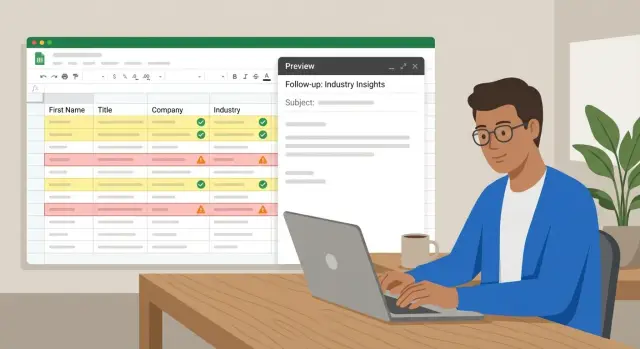
Why bad personalization happens at scale
Bad personalization breaks trust fast in cold email. If someone sees the wrong name, a title they stopped using two years ago, or an industry that doesn’t match their company, they assume the rest of the message is just as careless.
You’ll usually see warning signs in replies and metrics: “That’s not my name,” more unsubscribes, or prospects pointing out you emailed the wrong person. Even without replies, it shows up as fewer positive responses and more spam complaints.
These mistakes become common as you scale because you stop checking data row by row. A small issue in a CRM export, an enrichment source, or merge tag mapping can affect thousands of emails in one send. Problems also pop up when you combine multiple sources (CRM, lead providers, manual lists) that format names, titles, and industries differently.
The most common causes at volume:
- Messy inputs: extra spaces, ALL CAPS, swapped first and last names, placeholder values like “-” or “N/A.”
- Outdated facts: old job titles, old companies, contacts who changed roles.
- Wrong mappings: merge tags pointing to the wrong field, fallback text triggering too often.
- Rushed sampling: you preview 3 emails, assume it’s fine, and send 5,000.
A solid personalization QA workflow is simple: validate the data, test merges, and preview enough real emails to feel confident.
Example: a list shows “Jordan” in the first name field, but it’s actually the company name “Jordan Logistics.” A quick rule and a small preview sample would flag it before it reaches anyone.
Common bad personalization errors to watch for
Bad personalization tends to repeat the same patterns. Once you know what to look for, QA gets faster and less stressful.
Data mistakes (the content is wrong)
The most common issue is a wrong first name. Sometimes the field is blank. Sometimes it’s a nickname you shouldn’t use. Sometimes you get a swapped order like “Smith John” turning into “Hi Smith.” This often happens when one system stores “Full Name” and another expects “First Name.”
Outdated titles and company names are next. People change roles often, and many lists lag behind. You think you’re emailing a “VP Marketing” at “Acme,” but they’re now a “Growth Lead” at a different company. That mismatch hurts trust even if the rest of your message is good.
Mismatched industry, location, or use case is harder to catch because it reads like a normal sentence, just for the wrong person. Example: your email says “your healthcare practice,” but the lead works in fintech.
Formatting and template mistakes (the content looks broken)
Some errors make the email look messy or automated:
- ALL CAPS names or titles (“JANE”)
- Extra spaces, trailing commas, double punctuation
- Weird characters from encoding (smart quotes, hidden symbols)
- Broken merge tags that show up as {{first_name}}
- Fields that include notes (“John - met at conference”)
A practical rule: if previews show “Hi {{first_name}}” or “Hi ,” for even a few rows, stop and fix the template or data before sending to thousands.
Start with a simple data standard (what fields matter)
Bad personalization usually starts before you write copy. If your lead fields are inconsistent, every merge tag becomes a risk. Start by agreeing on which fields you’ll trust and what “clean” looks like.
The fields that must be clean
For most outbound, four reliable fields get you far: first name, company name, role/title, and company domain. If those are correct, your greeting, opening line, and basic relevance checks work. Everything else (industry, location, headcount) is optional unless your copy depends on it.
These fields usually come from a mix: CRM exports, enrichment providers, manual list building, and notes from past conversations. Mixing sources is fine, but only if you decide which system wins when values conflict.
A practical approach is to pick one “source of truth” per field, and treat the rest as secondary.
- First name: CRM contact record
- Company name: enrichment (only if it matches the domain)
- Role/title: enrichment, but only if verified recently
- Domain: the company website field (not the email domain if it’s a reseller)
- Industry: only use if it’s consistent across sources
Decide what happens when data is missing
Missing fields are normal. The mistake is guessing.
Define safe fallbacks before anyone hits send. Use “Hi” or “Hello” when the first name is blank. Remove any line that depends on industry when industry is unclear. Avoid calling out a title if it’s older than your cutoff.
One simple helper is a “data last verified” date. If a title hasn’t been checked in 6 to 12 months, treat it as untrusted.
A practical QA workflow you can repeat every week
This is less about perfection and more about doing the same small checks every time.
- Normalize the data first. Trim spaces, standardize casing (“Pat” not “PAT”), split full names into first and last if you can. Keep job titles and industries consistent.
- Run automated flags. Mark records with missing first name, non-human names (“info”, “admin”), titles that look outdated (“Former”, “Ex-”), and obvious merge breakers like “{first_name}” showing up inside fields.
- Review a small sample using previews. Pull 20 to 50 leads across segments and preview the emails they’d actually receive. Look for wrong greetings, awkward title phrasing, and company or industry mismatches.
- Fix at the source, then re-check. Correct issues in the CRM or provider, not only in the export. Rerun the same flags so you know the fix held.
- Lock the send list and log issues. Once it’s clean, freeze the list for that send. Track what you fixed so the same problem is less likely next week.
Example: you sample 30 leads and notice five start with “Hi {FirstName}.” That usually means the first name field is blank or the merge tag mapping is wrong. Fix the mapping, rerun flags, and preview again until every sampled email renders clean.
If your sending platform keeps previews close to sequence building, it’s easier to catch mistakes while they’re still cheap to fix. LeadTrain, for example, combines multi-step sequences with previews and reply classification in one place, which can reduce the back-and-forth between exports, mail merges, and send tools.
To keep the habit lightweight, record only a few things each send: which fields caused the most flags, how many records you removed vs corrected, the top one or two recurring sources (CRM, provider, manual edits), and any fallback you used.
Step by step: build validation rules for names, titles, industries
Validation rules turn messy lead data into clear buckets before you send. Keep the rules simple enough to run weekly, but strict enough to catch the embarrassing stuff.
Add a single column called QA status with three values: pass, needs review, blocked. Blocked rows never go into a sequence.
Names: catch bad merges early
Name fields fail in predictable ways. Flag placeholders or mis-mapped values like “Test,” “N/A,” “Friend,” “-,” or a single letter like “J.” Also watch for a company name sitting in the first name field (like “Acme Logistics LLC”).
A simple rule works well:
- If first name is blank: blocked
- If first name has more than 2 words, or contains “LLC/Inc/Ltd”: needs review
Titles and industries: make them usable
Titles go stale quickly and are easy to scrape poorly. Mark needs review when you see “former,” “ex-,” or “retired,” odd casing (“cEO,” “Vp SALES”), or titles that are unusually long (80 to 100 characters is a reasonable threshold). If your campaign is role-specific and title is missing, mark blocked.
Industries work best as a controlled list. Pick your allowed values (even 10 to 20 is fine), then map common synonyms into them. Treat “unknown” as a warning, not a value.
A compact rule set you can apply in one pass:
- Name: blank or placeholder -> blocked; suspicious patterns -> needs review
- Title: stale words, odd casing, too long -> needs review; blank when required -> blocked
- Company: blank website or duplicate domain -> needs review; missing company name -> blocked
- Industry: not in allowed list -> needs review; unknown/blank -> needs review
- QA status: only pass rows can be uploaded and sent
Step by step: triage flags and review a small sample
After your validation rules run, don’t re-check the whole file by hand. Treat it like a decision step. Each flagged row gets one of three outcomes: fix, enrich, or exclude.
- Fix: obvious typos and casing (“mike” to “Mike”), swapped first/last names, broken fields.
- Enrich: missing titles or industries where you can pull better data from your source or a provider.
- Exclude: anything you can’t trust before the send (blank company name, conflicting country, a role that doesn’t make sense).
The rules do the heavy lifting. Humans review exceptions.
To keep sampling consistent:
- Review 20 random leads per segment (or per 1,000 leads, whichever is larger)
- Always sample a brand-new data source for its first two sends
- Spot-check high-risk slices (new countries, new title patterns, new industries)
- Add a “top accounts” sample (your most important companies)
- Sample any segment with unusually high flag rates
Keep the sample quick: check name, company, title, and industry against what the email will actually claim. If you preview messages in your sending tool, confirm the subject line and first sentence read like a real person wrote them.
Finally, keep a short log. One line per issue is enough: what failed, where it came from, and how you fixed it.
Step by step: preview sequence emails before sending
A sequence can look fine in a template and still break when real data fills in the blanks. Before you hit send, preview using actual lead rows, not dummy values.
1) Generate previews from real records
Pick 5 to 10 leads from the upcoming list and generate previews for the whole sequence. Include at least one clean record, one messy record (odd punctuation, long company name), and one record missing optional fields like industry or title. If your platform supports it, send the previews to yourself so you read them like real inbox messages.
Don’t stop at step 1. Follow-ups often reuse merge tags you forgot were there.
2) Review each step with a fixed checklist
Read the subject line and first sentence out loud. Merge issues show up there first.
Check that:
- Every merge field renders (no blank spots, “Hi ,”, or “{first_name}”).
- Names and capitalization look human (no ALL CAPS, extra spaces, strange punctuation).
- Titles and industries fit the company type.
- Subject lines still work with long names or company names.
- Missing optional fields fall back safely (a generic line instead of a wrong guess).
A common catch: the opener says “Loved your work in fintech,” but the company is clearly a construction supplier. That’s usually a mapping issue or stale data.
Edge cases and safe fallbacks that reduce risk
Bad personalization often slips in through edge cases: missing fields, messy characters, and company structures that don’t match your assumptions. QA isn’t only about catching errors. It’s also about choosing safe defaults when data is uncertain.
When a first name is missing, avoid anything that looks like a broken merge. A simple “Hi” or “Hello” reads more natural than forcing a placeholder.
Non-English names and special characters are another trap. Keep diacritics if your tool supports them, but normalize whitespace and remove invisible characters. Also watch for ALL CAPS imports. Converting “MARIA” to “Maria” prevents a strange first impression.
Titles change fast for certain roles (sales, recruiting, contractors). If the title field is old, personalize to responsibilities instead of the exact title. “I work with SDR teams” is safer than “As a Senior SDR Manager” when you’re not sure.
Parent company vs subsidiary naming can create awkward lines. If the lead works at “Acme Payments” but your account field says “Acme Group,” don’t guess. Use the website domain or the most reliable company name source.
Safe fallbacks that reduce risk:
- If first name is blank, use “Hi” and skip the name
- If industry is unclear, remove industry lines entirely
- If company naming conflicts, use the shorter brand name
- If title is volatile, reference responsibilities, not the title
- If characters look corrupted, use a neutral greeting
Example: you’re sending 5,000 emails and 8% of leads have “Industry: Other” or empty. Dropping the industry sentence usually beats forcing a wrong guess.
Common traps that cause embarrassing sends
Most “how did this happen?” moments come from a few predictable patterns.
One is cleaning a spreadsheet export but leaving the source messy. You fix “VP Sales” in a CSV, send today’s campaign, and next week the CRM export pulls the old value again. If the source system is wrong, your fixes don’t stick.
Another is over-personalizing with fields you can’t trust. “Industry,” “employee count,” and “recent funding” are often guesses from enrichment. They can help with segmentation, but they’re risky as direct claims in a first email.
Template sprawl causes quiet breakage. More variants means it’s easier to forget to retest merge tags across every version.
Enrichment also fails in predictable ways: people change jobs, companies rebrand, subsidiaries get mislabeled. Your message starts to read like you never checked.
A/B tests can introduce new merge tags without a fresh QA pass. Variant B adds “Noticed you’re in {{industry}},” and suddenly your risk jumps.
Guardrails that prevent most mishaps:
- Treat enrichment fields as “unverified” unless recently checked
- Limit first-touch personalization to high-confidence fields (name, company, role)
- Retest every template whenever you add or rename a merge tag
- When changing A/B variants, preview both versions before scheduling
- Fix the CRM (or source) first, then re-export
A quick pre-send checklist (5 minutes)
If you only have five minutes, spend them here. This catches the issues that turn a good campaign into an awkward apology.
- Run validation rules and block known bad patterns. Stop sends with empty first names, ALL CAPS names, obvious placeholders (“test”, “asdf”), and titles that look like job boards (“Hiring”, “Open to work”).
- Review the flagged queue and write down the fix. Don’t just delete leads. Note what changed so the same issue doesn’t return next week.
- Preview every step with a few real leads. Use 3 to 5 contacts that represent your main segments. Confirm names, company names, and any industry lines read naturally.
- Confirm segments match the copy. Make sure your filters match what the email claims (industry, role level, region, company size).
- Do a final count of excluded leads (and why). Track how many were blocked for missing name, stale title, bounced domain, or mismatched segment.
Concrete example: if step 2 says “As a VP of Finance in SaaS…”, preview it with one SaaS finance lead, one SaaS ops lead, and one non-SaaS finance lead. If two feel wrong, your segment rules aren’t tight enough even if merge tags are fine.
Example: catching wrong names and titles before a 5,000-lead send
You import 5,000 new leads from a provider and plan to add them to a sequence the same day. The sheet looks fine at a glance, but the risk is hidden in the small errors that turn into hundreds of embarrassing emails.
You run basic checks and the numbers tell a story:
- 8% are missing first name (about 400 records)
- 4% have outdated titles (about 200 records)
- 2% have the wrong industry (about 100 records)
First, fix name parsing. Providers often put “First Last” into one field or add extra text like “Dr.” or “(MBA)”. After parsing, re-check. For the remaining blanks, use a safe greeting so the email doesn’t render as “Hi ,”.
Next, handle titles. You don’t need perfect titles for everyone, but you do need them to be not wrong. Refresh titles for the segment where title matters most, then remove the rows that are clearly stale or unrelated.
Then review industry mismatches. If your offer is industry-specific, those 2% can drive negative replies and spam complaints. Drop low-confidence rows instead of guessing.
Before sending, preview the sequence with real records. You catch a broken merge tag in a follow-up that would have sent raw placeholder text. Fix it, preview again, then schedule.
Result: fewer “wrong person” replies, fewer unsubscribes, and cleaner reporting because “not interested” reflects the offer, not bad data.
Next steps: make QA a habit (and simplify your stack)
The fastest way to stop embarrassing sends is to treat QA like routine, not a rescue mission. Write down your checks once, then run the same play every time. Keep it short enough that someone else can do it on a busy day.
A one-page SOP is usually enough:
- Import and normalize lead data (names, company, title, industry, country)
- Run validation rules and fix or suppress flagged rows
- Preview a small set of emails (new segment or new template first)
- Send a small batch and confirm replies and bounces look normal
- Scale to the full send
Make QA measurable. Each week, record how many leads were flagged and why. Tag the data source too. After a few sends, patterns show up fast: one provider might drive wrong job titles, another might be weak on industries.
Add simple QA gates before anything new goes live. A new segment, merge tag, or template should require a solid rules pass rate, a small manual sample, and a preview check.
Finally, reduce the number of handoffs. The more tools you copy data between, the more chances for broken merges. If you want fewer moving parts, LeadTrain (leadtrain.app) keeps domains, mailboxes, warm-up, sequences, and AI-powered reply classification together, which helps teams spend less time chasing issues across systems.
Pick a weekly cadence and stick to it: data QA, preview, small send, then scale.
FAQ
What counts as “bad personalization” in cold email?
Bad personalization is when the email uses incorrect or broken details like the wrong first name, an outdated title, the wrong company, or a mismatched industry. The fastest signal is trust loss: replies calling out mistakes, more unsubscribes, and lower positive response rates even if deliverability stays the same.
What’s the simplest QA workflow I can run before every send?
Start with four fields you can trust: first name, company name, role/title, and company domain. Normalize the data, run simple validation flags (missing names, placeholders, weird casing), then preview 20–50 real emails across segments before scheduling the send.
What should I do when first name or other fields are missing?
Use a safe greeting and remove risky lines. A plain “Hi” or “Hello” reads normal, while “Hi ,” or a placeholder looks automated. If your opener depends on industry or title and those fields are missing, delete that sentence instead of guessing.
How do I catch broken merge tags before sending?
Preview multiple real records across the whole sequence, not just the first step. Look for raw placeholders like "{{first_name}}", blank gaps like "Hi ,", odd capitalization, and claims that don’t match the lead’s company type. Follow-ups often reuse merge tags you forgot were there.
How do I prevent industry personalization from being wrong?
Keep industry as a controlled list and treat “unknown/other” as a warning, not a value. If industry isn’t consistent across sources, don’t mention it directly in the copy; use it only for segmentation or drop the industry line entirely to avoid mismatches.
What’s the best way to handle conflicting data from multiple sources?
Pick one source of truth per field and document it. If values conflict, defer to the field that’s easiest to verify (often domain and company name), and treat volatile fields like title as untrusted unless recently updated. Fix issues in the source system so they don’t come back next export.
What validation rules are most useful for names and titles?
Create a simple QA status like pass, needs review, and blocked. Block blank or placeholder names, and mark suspicious patterns for review, like first names with multiple words or company suffixes (LLC/Inc). For titles, flag “ex-”, “former”, odd casing, or unusually long strings.
How many emails should I preview to feel confident?
For most teams, preview 20–50 leads per send across segments, or at least 20 per segment if you have distinct audiences. Always include a few “messy” records (long company names, missing optional fields) and your highest-value accounts so you don’t miss an edge case that matters.
What are the most common traps that cause embarrassing sends?
They usually come from small mistakes that scale: wrong merge tag mapping, relying on enrichment fields as facts, adding new tags in A/B variants without retesting, or cleaning only the CSV instead of the CRM/source. Limiting first-touch personalization to high-confidence fields prevents most embarrassing failures.
How can LeadTrain help reduce personalization QA mistakes?
LeadTrain consolidates domains, mailboxes, warm-up, multi-step sequences, and reply classification in one place, which reduces handoffs where merges break. You can keep previews close to sequence building, fix issues earlier, and spend less time bouncing between exports, mail merges, and separate sending tools.